How to Blur the Background of a Picture on iPhone (4 Easy & Free Ways)
Want to make your iPhone photos look more professional or draw attention to your subject? Learn how to blur the background of a picture on iPhone is a great way to do it.
Whether you’re shooting portraits, product shots, or just trying to hide a messy background, a soft blur can dramatically enhance your image. Below, we share 4 quick and straightforward ways to show you how to blur photos on iPhone. Let’s get started!
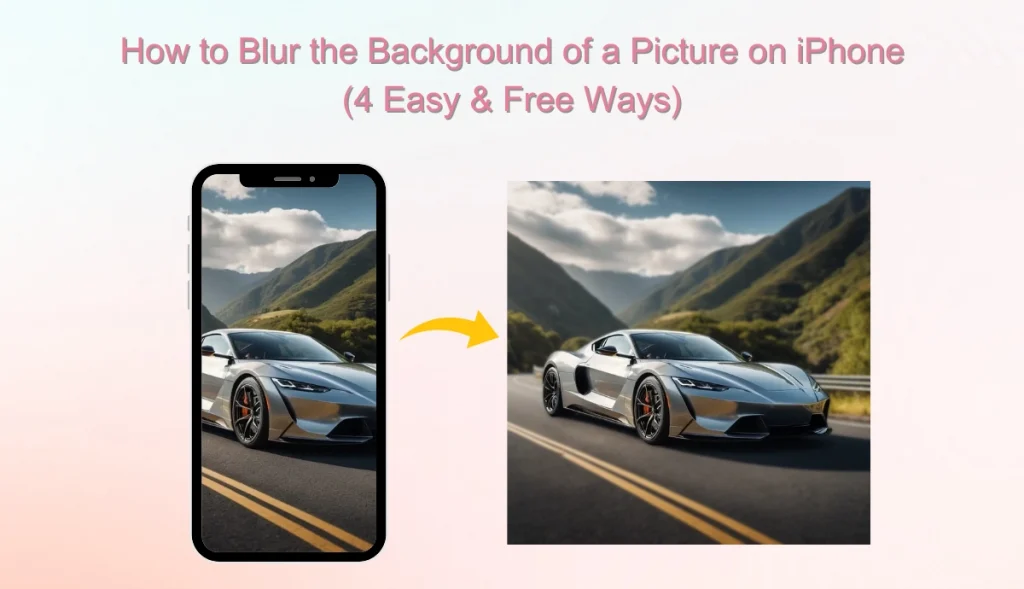
#1. How to Blur Background on iPhone without Portrait Mode
How to blur background on iPhone without portrait mode after taking photo? AI Ease is the perfect answer. This AI-powered image blur tool is simple and easy to use, allowing you to blur the background quickly and for free. You don’t need professional photo editing knowledge; upload a photo, and AI will automatically identify the subject and intelligently blur the image background.
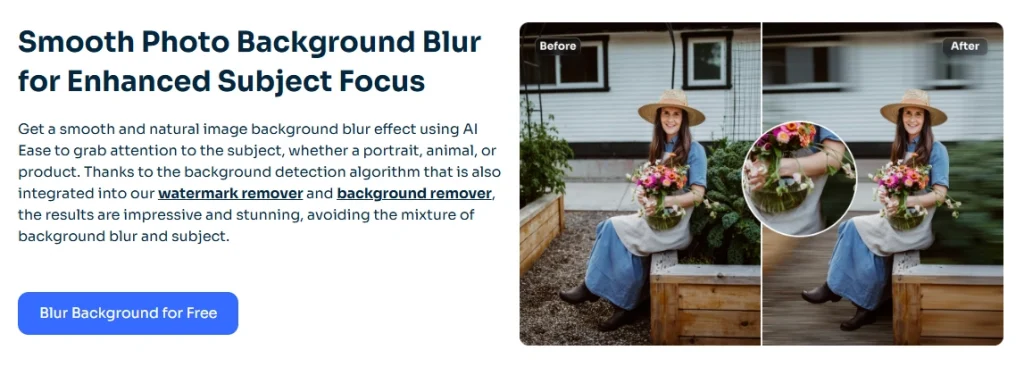
Key Features
- AI Ease can blur background online, so if you have a browser, you can use it on any iPhone model.
- This photo blur maker supports you to custom blur levels, such as light blur, soft focus, or strong blur.
- AI Ease is user-friendly and suitable for everyone. It is ideal for users who often share photos on social platforms or need to process commercial images.
- The effect is natural, and details are well preserved. Whether you’re taking selfies, portraits, or product photos, blurring the picture background instantly improves the texture.
How to blur the background of a picture on iPhone easily
Only 3 steps, you can blur the background of a photo online with AI Ease.
Step 1. Upload your images to AI Ease’s background blur tool or drag them directly. You can add up to 50 photos at once.
Step 2. Our image blurrer automatically detects the background and applies a blur effect within seconds. You can choose from four different blur styles to blur the photo background.
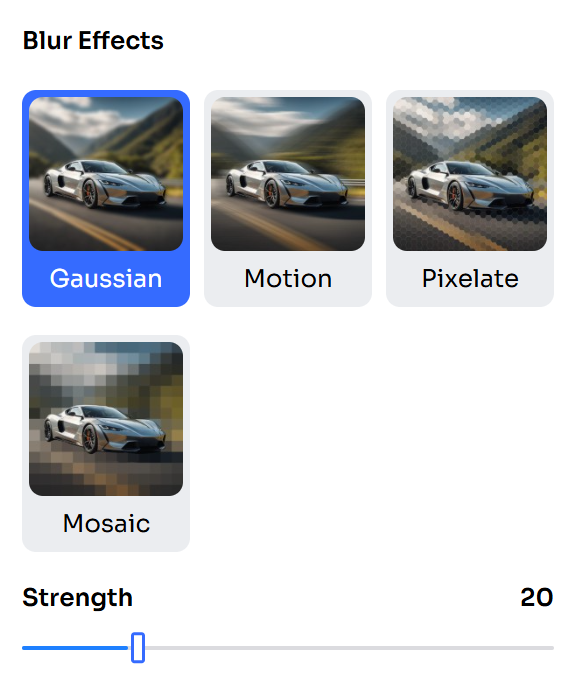
Step 3. Once satisfied with the results, simply download your photo with a blurred background.
In addition, as a cutting-edge AI tool, AI Ease also allows you to remove the image background, modify the background color, etc.
#2. How to Blur Background in iPhone with Portrait Mode
The iPhone’s built-in camera app can help you easily take photos with blurred backgrounds. Open the camera, slide to select “Portrait”, and then aim at the subject. The background will be automatically blurred at this time, and the subject will be more prominent, suitable for taking portraits, pets, and food.
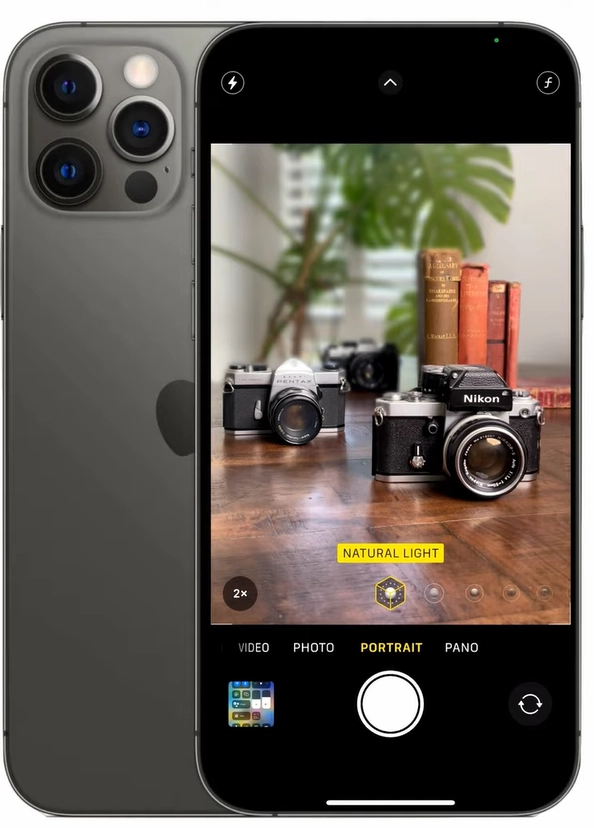
You can customize the degree of background blur by tapping the f icon in the upper right corner. The iPhone’s portrait mode is available for iPhone 7 Plus, iPhone 8 Plus, iPhone X, and its subsequent models, including iPhone SE (second generation and above) and iPhone XR.
#3. How to Make the Background Blur in Photo App on iPhone
If your photo was taken in portrait mode, then you can blur your photo later in the Photo app. Open your picture in Albums, tap “Edit”, then find the Depth Control button and swipe left or right to enhance or reduce the image background blur. If you’re unsatisfied with the background blur, you can revert to the original image without any blur.
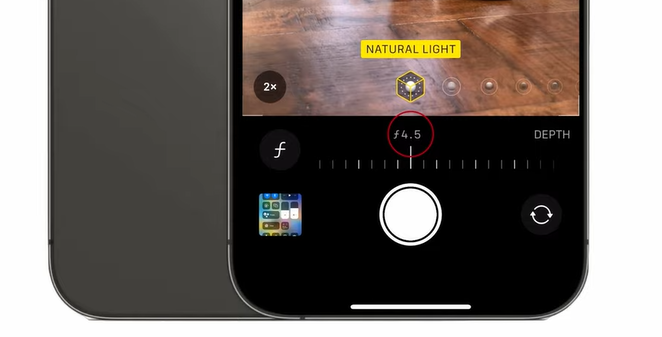
However, this feature only works for photos taken in Portrait mode. If the photo was not taken in Portrait mode, you can’t adjust the background blur this way. You can use AI Ease, a handy background blur tool to learn how to blur a photo on iPhone.
How to blur a picture on iPhone by using Photo app
Here are detailed steps to blur a picture using the iPhone photo editing tool.
Step 1. Open your Portrait photo in the Photos app.
Step 2. Then tap Edit in the top-right corner.
Step 3. Tap the f/number icon in the top-left corner.
Step 4. Use the Depth slider below the photo to adjust the blur intensity.
- A lower f-number creates a stronger background blur, making your subject stand out more.
- A higher f-number reduces blur, revealing more detail in the background.
#4. Blur Background by Getting Closer to the Subjects
There is a photography trick that allows you to take photos with blurred backgrounds. The method is simple enough, just keep getting closer to the subject while shooting. You can first make enough distance between the subject and the background, and then move the lens closer to the subject, so that the physical focal length can naturally blur the background.
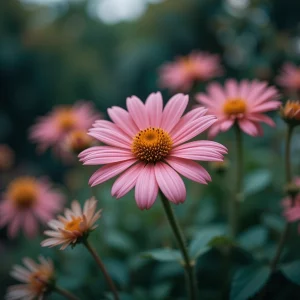
Comparison of 4 Methods to Blur the Backup of a Picture
What’s the best free way to blur a background on iPhone? We have compiled information on these tools; you can refer to it and choose the blur tool for iPhone that suits you best.
| Method | Ease of Use | Best Used For | Platform |
| AI Ease Blur Tool | ★★★★★Very Easy | After Shooting – Edit any image | Web,App |
| Portrait Mode(Camera) | ★★★★Easy | While Shooting – Ideal for planned portraits | Camera App |
| Photos App(Edit Portrait Photos) | ★★★Moderate | After Shooting – Only works for Portrait photos | Photos App |
| Move Closer to Subject | ★★Requires manual effort | Before & While Shooting – Best for spontaneous shots | iPhone Camera |
FAQs on How to Blur the Background of Picture on iPhone
The following are some of the issues that users are concerned about how to blur background in iPhone.
Can I download the background blur pictures from AI Ease without a watermark?
Yes, you can download blurred photos from AI Ease without any watermark. It’s designed to be free and user-friendly, so your final image is clean and ready for personal or professional use.
AI Ease also provides more photo editing tools, like watermark remover and object remover, you can try these tools if necessary.
Is there a blur tool on iPhone Photos?
If your photo was taken in Portrait Mode, you can adjust the background blur (depth effect) by editing the photo and changing the f-stop (depth control) slider. You’ll need to use third-party apps or tools for photos taken without Portrait Mode.
Can I blur the background in videos on iPhone?
iPhones don’t offer built-in background blur for videos in the native Camera or Photos app. However, you can achieve blurred pictures on an iPhone using third-party video editing apps or tools like CapCut or LumaFusion.
The Final Words
This article explains how to blur the background of a picture on iPhone. The above 4 simple methods can help you blur the background of a photo on iPhone, so that your photos look more professional. From native features such as Portrait Mode to powerful tools such as AI Ease, there are many methods to choose from, so you don’t need to be a professional photographer to take stunning photos.