GPT Image 2.5: Faster Creation, Finer Visual Control
Generate from text, build from reference images, or update an existing visual with GPT Image 2.5 on AI Ease. Use Flare when you want faster everyday creation, or switch to Sunburst when products, text, layouts, and fine details need closer control.
Create Faster with Flare, Refine with Sunburst
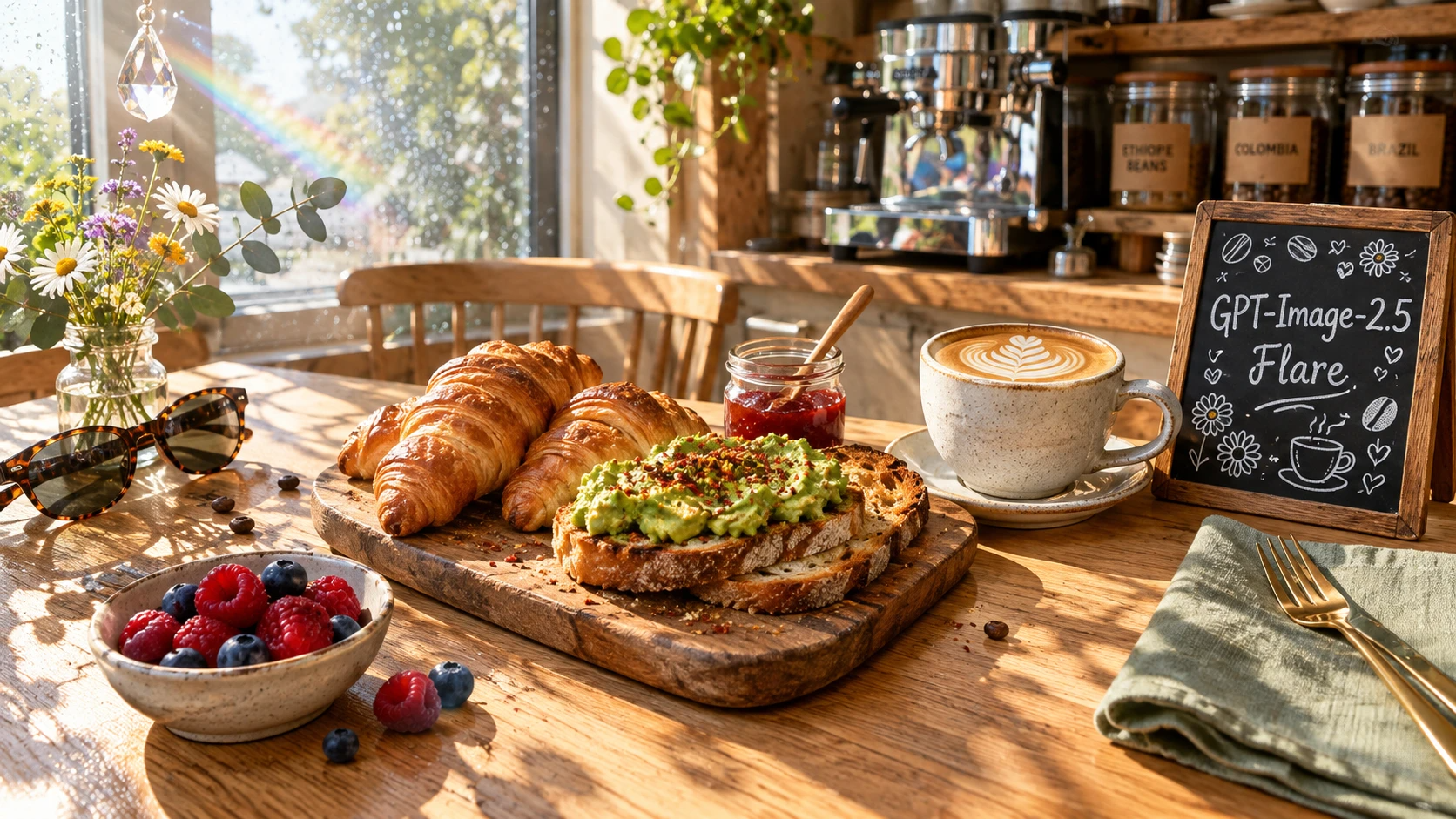
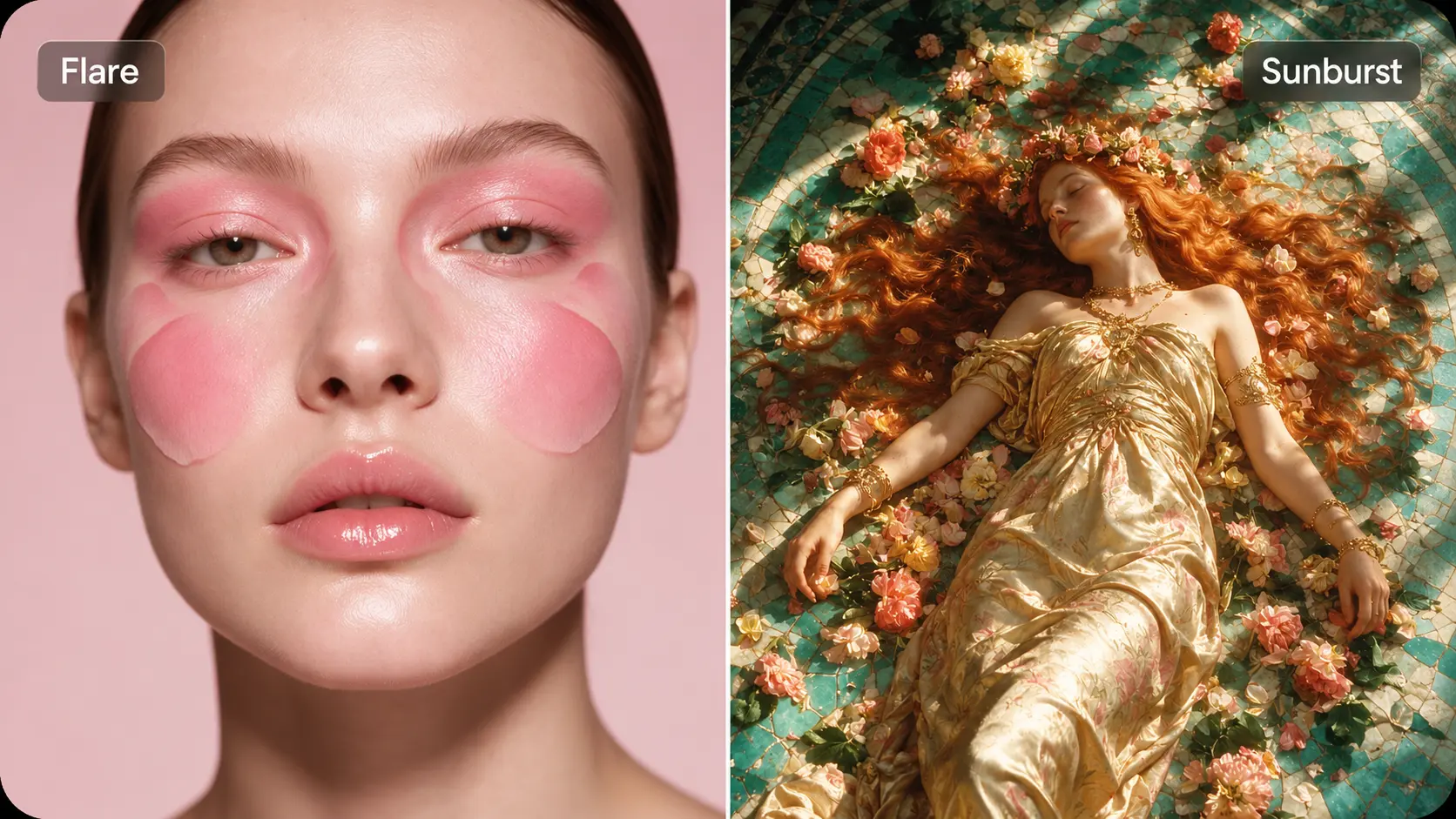
When you are still testing directions, waiting too long on every draft breaks the flow. GPT Image 2.5 Flare is built for faster generation and quick variations, while Sunburst is better suited to work where typography, lighting, materials, or composition need closer control. AI Ease keeps both modes in the same creation flow, so you can choose speed or detail around the task.
Build Complex Visuals from Up to 16 References
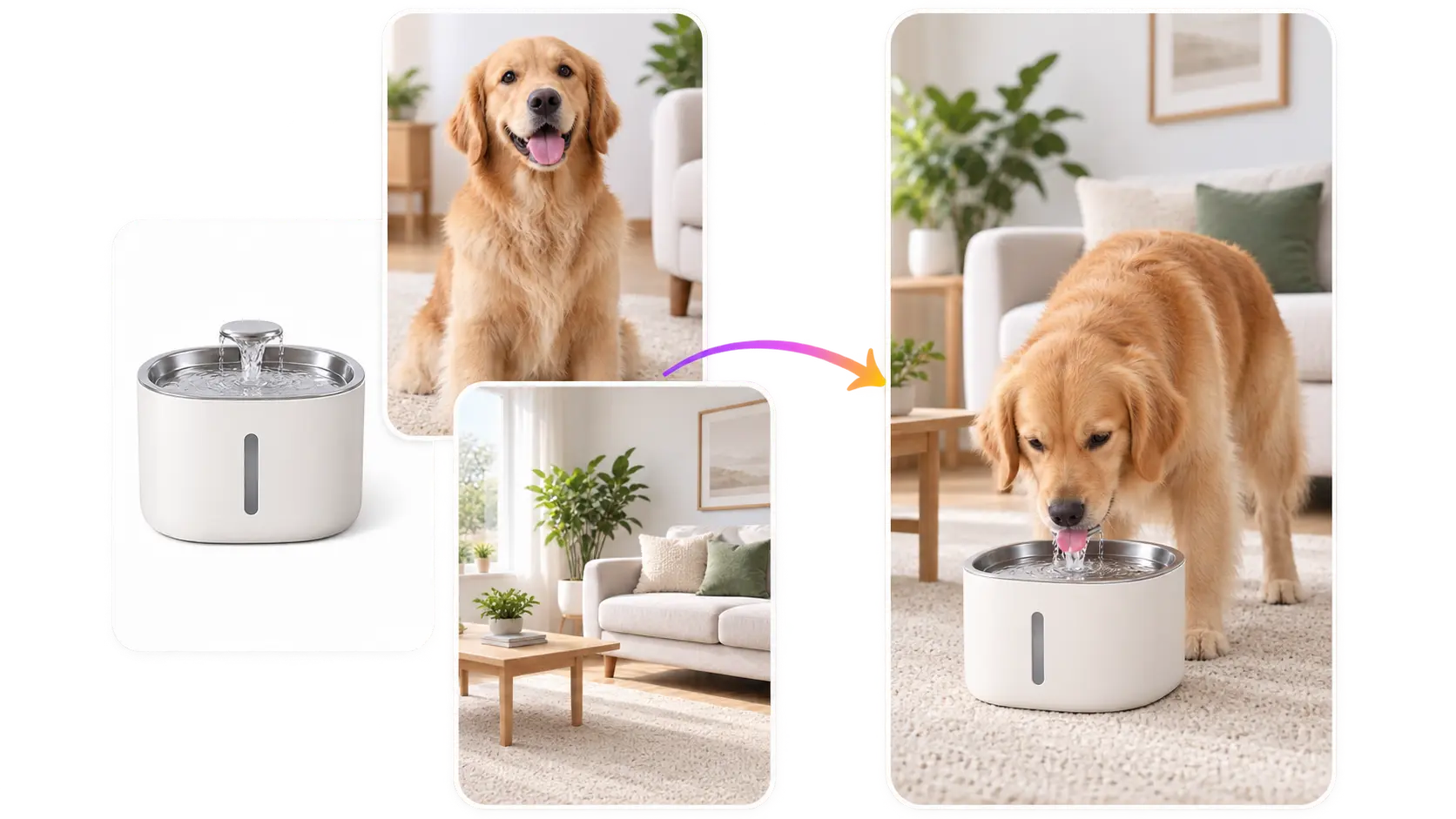
One reference is rarely enough when the final image depends on several specific details. GPT Image 2.5 reference-based generation supports up to 16 reference images, so a face can come from one source, the outfit from another, and the product or setting from somewhere else. AI Ease lets you bring those visual cues together in one generation instead of describing everything from scratch.
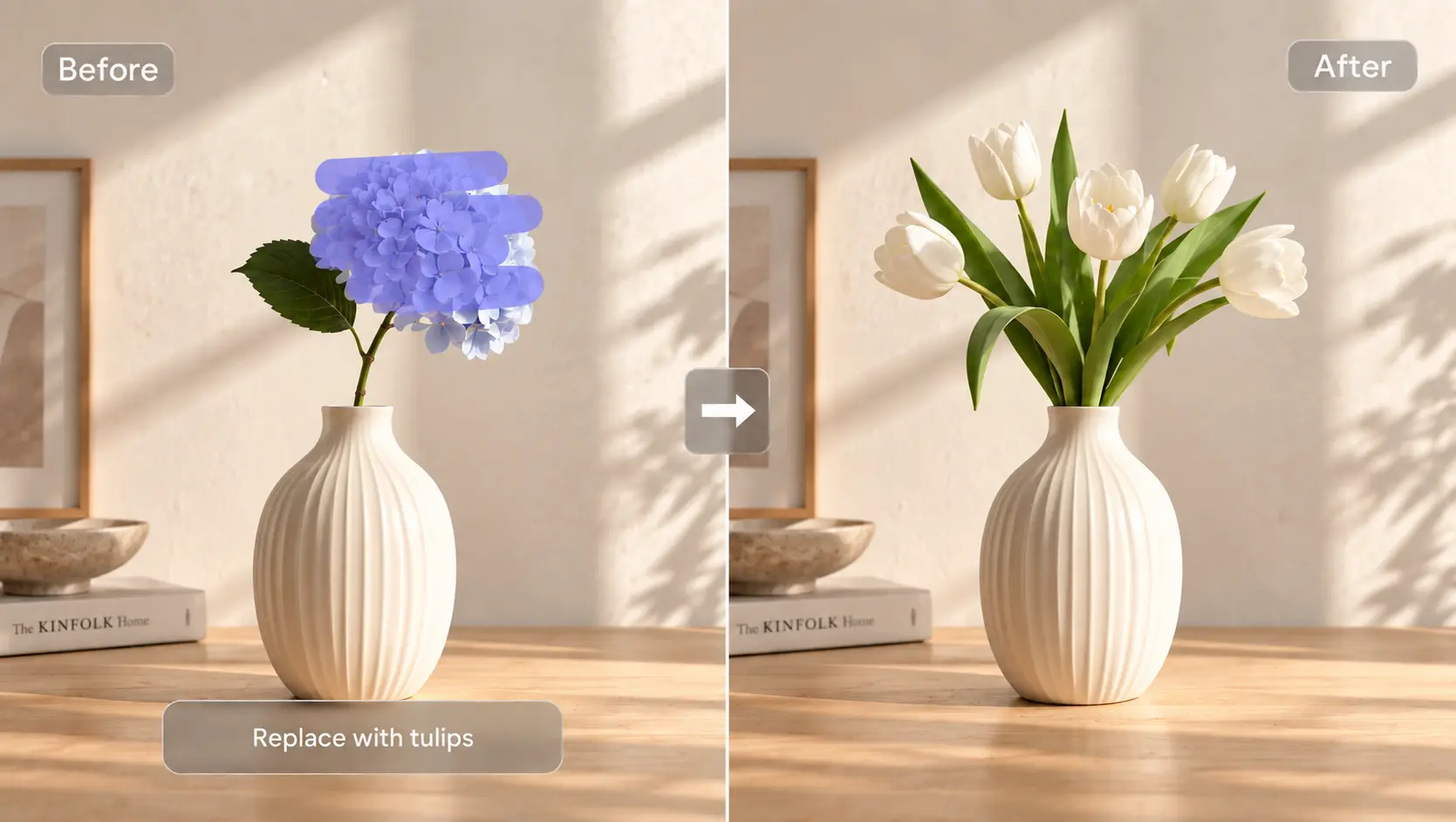
Edit the Part That Actually Needs Changing
Sometimes the image is almost right except for one object, one line of text, or the wrong background. GPT Image 2.5 image editing can focus the change on the area you specify while preserving more of the surrounding composition. Replace a product, change clothing, remove an unwanted element, or update text without rebuilding the whole scene.
Handle Detailed Briefs in Up to 4K
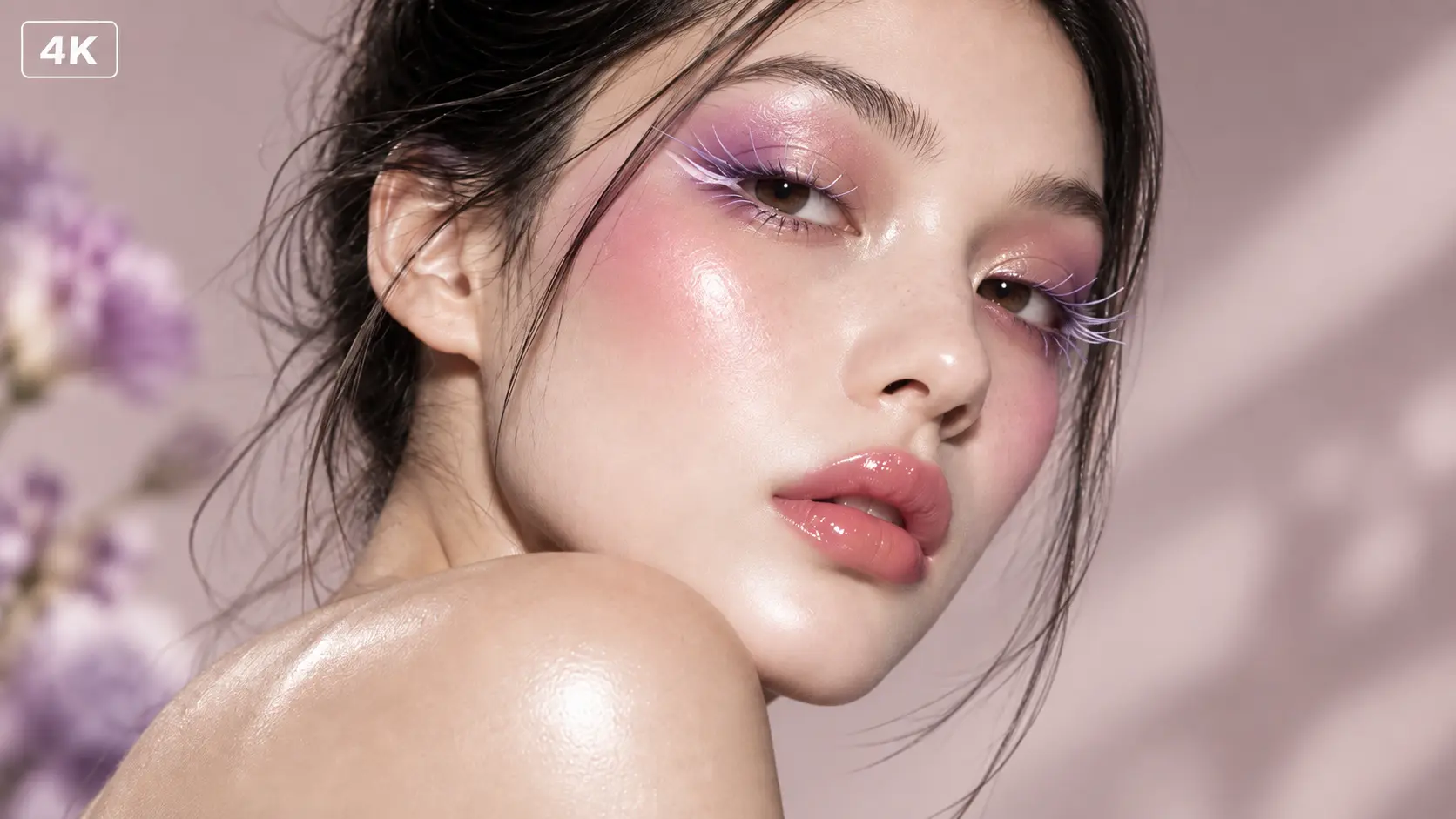
A commercial visual often depends on layout, lighting, materials, text, object placement, and art direction working together. GPT Image 2.5 handles these layered instructions more reliably, keeping the composition closer to the brief. With up to 4K output on AI Ease, product textures, graphic details, illustrations, and campaign visuals can stay sharp in the final asset.
What Can You Create with GPT Image 2.5?

Product & Ecommerce Visuals
Turn a product reference into studio shots, lifestyle scenes, launch visuals, or seasonal campaigns. Keep the product recognizable while changing the setting, lighting, or creative direction for different storefronts and promotions.

Ads & Campaign Creative
Build visuals around a clear product, message, or campaign idea. Test different compositions, environments, and art directions, then develop the strongest concept into landing page banners, paid ads, or launch assets.

Posters & Social Graphics
Create event posters, promotional cards, social posts, editorial covers, and other layout-led visuals. GPT Image 2.5 can follow directions for typography, spacing, hierarchy, and image placement when the composition matters as much as the subject.

Portrait & Fashion Concepts
Start from a portrait or clothing reference and explore new styling, locations, outfits, or editorial directions. AI Ease makes it easy to reuse existing visual references when you want a fresh concept without losing the original subject.

Photo Editing & Object Replacement
Use an existing image when most of it already works. Replace a product, remove distractions, change clothing, update text, or switch the background without rebuilding the entire scene from scratch.

Illustration & Packaging Design
Move beyond photographic styles with editorial illustration, collage, print-inspired art, packaging concepts, handcrafted textures, and more experimental visual directions. Detailed prompts can shape the color system, materials, layout, and overall art direction around a specific brief.
How to Use GPT Image 2.5 on AI Ease
- Step 1
Choose GPT Image 2.5
Open the AI Ease image generator and select GPT Image 2.5. Pick Flare for faster generation and quick visual exploration, or Sunburst when the image needs closer control over details, layout, or editing.
- Step 2
Add a Prompt or Reference Images
Describe the result you want, including the subject, composition, lighting, materials, text, or style when they matter. For reference-based generation, upload the images you want to guide the result and make each reference's role clear.
- Step 3
Set the Output
Choose the aspect ratio and image quality for your final use. A product image, social post, poster, or campaign banner may need a very different composition, so setting the format before generation can save time later.
- Step 4
Generate or Edit
Click Generate to create the image. If you are editing an existing visual, upload the source image and describe the exact change you want, such as replacing an object, updating text, changing clothing, or switching the background.
Frequently Asked Questions
Have more questions? You can email service@aiease.ai, and we'll be happy to help you.
What is GPT Image 2.5?
GPT Image 2.5 is OpenAI's latest image generation and editing model. It creates images from text, works with reference images, and supports focused edits to existing visuals. The update brings stronger reference fidelity, sharper detail, more precise editing, and better control over complex visual instructions.
What is the difference between GPT Image 2.5 and GPT Image 2?
GPT Image 2.5 improves reference consistency, targeted editing, lighting, texture, and complex instruction following. It also introduces Flare for faster generation and Sunburst for detailed creative work that needs tighter control. Flare delivers up to 50% lower latency than GPT Image 2.
Should I use GPT Image 2.5 Flare or Sunburst?
Choose Flare for quick concepts, social visuals, product variations, and higher-volume creation. Choose Sunburst when detailed edits, product presentation, typography, or complex compositions need finer control.
Can GPT Image 2.5 keep faces and products consistent?
Yes. Stronger reference fidelity helps recognizable faces, products, clothing, and other distinctive details stay closer to the source when you change the setting, style, or composition.
How should I write a GPT Image 2.5 prompt?
Start with the result you want, then describe the subject, composition, lighting, materials, environment, text, and visual style that matter to the image. For editing, separate what should change from what should stay the same.