MiniMax H3 (Hailuo 3.0): Create Multimodal AI Videos With Sound and 2K Detail
MiniMax H3, also known as Hailuo 3.0, brings text, images, video, and audio into one video generation workflow. Create 4–15s AI videos with flexible reference control, native stereo sound, and up to 2K output on AI Ease.
Create More with MiniMax H3 on AI Ease
MiniMax H3: More Control Over How Your AI Video Takes Shape
MiniMax H3 gives you more ways to build a video from the assets you already have. Start from text, keyframes, or mixed media references, then shape the motion, sound, framing, and final output around your idea. The MiniMax AI Video Generator on AI Ease supports text, image, video, and audio inputs, making it easier to move from a simple concept or prepared asset to a complete video.
Create from Text, First Frame, or Last Frame
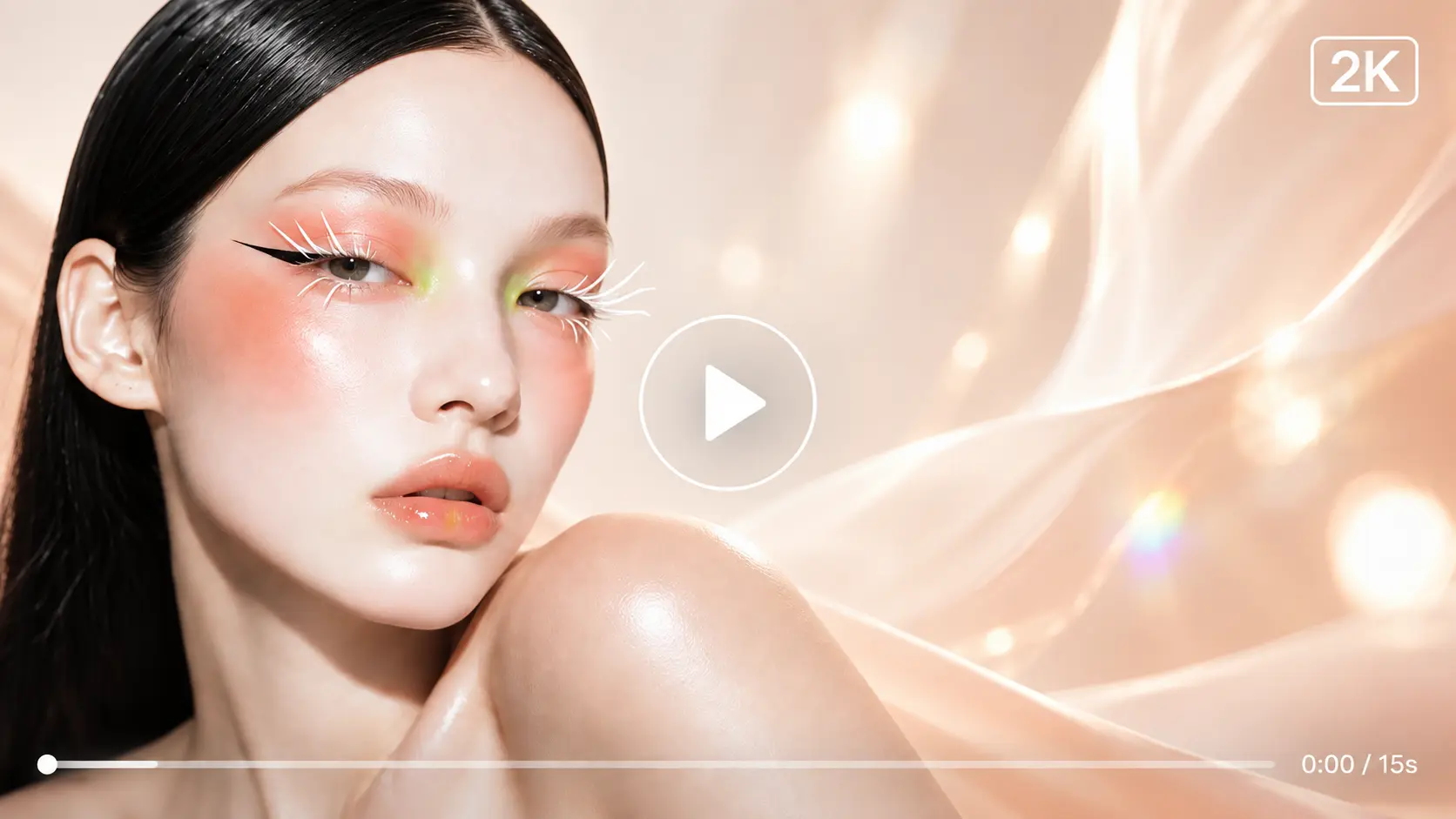
Start from scratch with a prompt or use existing images to control the composition from the beginning. The MiniMax H3 AI Video Generator lets you animate a first frame, a last frame, or both, while your prompt guides the action, camera movement, scene changes, and transition in between. This works well when you already know how the video should open, where it should end, or which visual moment needs to stay consistent.
Mix Image, Video, and Audio References
Some details are easier to show than describe. MiniMax H3 on AI Ease supports up to 9 reference images, 3 video clips, and 3 audio clips in reference-based generation. Use images for characters, products, environments, or visual style; video for movement and camera direction; and audio for voice, music, rhythm, or atmosphere. You can combine these materials to give the model more context around both the look and behavior of the final scene.
Generate Video and Stereo Audio Together
Create the visuals and soundtrack as part of the same scene instead of treating them as separate steps. MiniMax H3 can generate dialogue, music, ambience, and sound effects alongside the video, while audio references can guide an existing voice, track, pacing, or mood. This makes it easier to build product ads, dialogue scenes, music videos, and other content where sound plays an important role in the final result.
Create 4–15s Videos in 768P or 2K
Choose a duration that fits the scene instead of working around one fixed clip length. On AI Ease, the MiniMax AI Video Generator supports 4–15s videos in 768P or 2K, with 2K selected by default. You can also choose from 1:1, 3:4, 4:3, 16:9, 9:16, and 21:9, making it easy to prepare output for social feeds, product ads, campaign pages, cinematic scenes, and other publishing formats.
Create Different Types of Videos with MiniMax H3

Product Ads
Turn product images into short promotional videos with controlled camera movement, lighting, motion, and sound. MiniMax H3 can help you build launch clips, ecommerce creatives, feature showcases, and branded ads while keeping the product itself at the center of the scene.

Social Videos
Create vertical hooks, lifestyle clips, transformations, and short branded content for TikTok, Reels, Shorts, and other social platforms. On AI Ease, you can match the format to your channel and use reference media to guide the pace, style, or movement of the final video.

Music Videos
Bring audio, performance references, character images, and visual ideas into the same project. Use the MiniMax AI Video Generator for MV concepts, performance scenes, visualizers, narrative clips, and promotional teasers shaped around the rhythm and mood of your track.

Cinematic Stories
Build short narrative scenes with character movement, dialogue, camera direction, and environmental sound. MiniMax H3 also supports first and last frames, making it easier to plan a clear opening, transition, or ending for trailers, story concepts, and cinematic sequences.
How to Use MiniMax H3 on AI Ease
- Step 1
Select MiniMax H3
Open the AI Ease AI video generator and select MiniMax H3 from the available models.
- Step 2
Add Your Prompt and References
Describe the subject, action, camera movement, environment, and sound you want. Add images, video, or audio when you want existing materials to guide the result.
- Step 3
Set the Output and Generate
Choose a duration from 4–15 seconds, select 768P or 2K, and set the aspect ratio for your project. Click Generate, preview the video with sound, and download your result.
FAQs About MiniMax H3
Have more questions? You can email service@aiease.ai, and we'll be happy to help you.
What Is MiniMax H3?
MiniMax H3 is an omni-modal AI video generation model from MiniMax. You can use text, images, video clips, and audio as creative input, then generate videos with synchronized stereo sound and output up to 2K.
Is MiniMax H3 the Same as Hailuo 3.0?
Yes. MiniMax H3 is the official model name, while Hailuo 3.0 is another name used for the same video model. On AI Ease, you may see both names together so the model is easier to recognize.
Can I Use My Own Videos and Audio as References?
Yes. On AI Ease, you can use up to 9 images, 3 video clips, and 3 audio clips in reference-based generation. Video references can guide movement or camera behavior, while audio can guide voice, music, rhythm, or atmosphere.
How Long Can I Make a MiniMax H3 Video?
You can generate videos from 4 to 15 seconds on AI Ease. The default duration is 6 seconds, and you can choose a longer clip when you need more room for dialogue, movement, or storytelling.
How Can I Get Better Results with MiniMax H3?
Keep your instructions specific and describe the scene in the order it happens. When you upload several references, tell the model what each one should control — for example, which image defines the character, which video guides the movement, and which audio sets the music or voice.