Qwen Image 2.1 Turbo AI Image Generator
Qwen Image 2.1 Turbo is an AI image generation model that helps turn text descriptions and visual references into new images. With support for both text-to-image and reference image-to-image generation, it gives you flexible ways to explore creative ideas and bring your visual concepts to life.

Explore Images Created with Qwen Image 2.1 Turbo
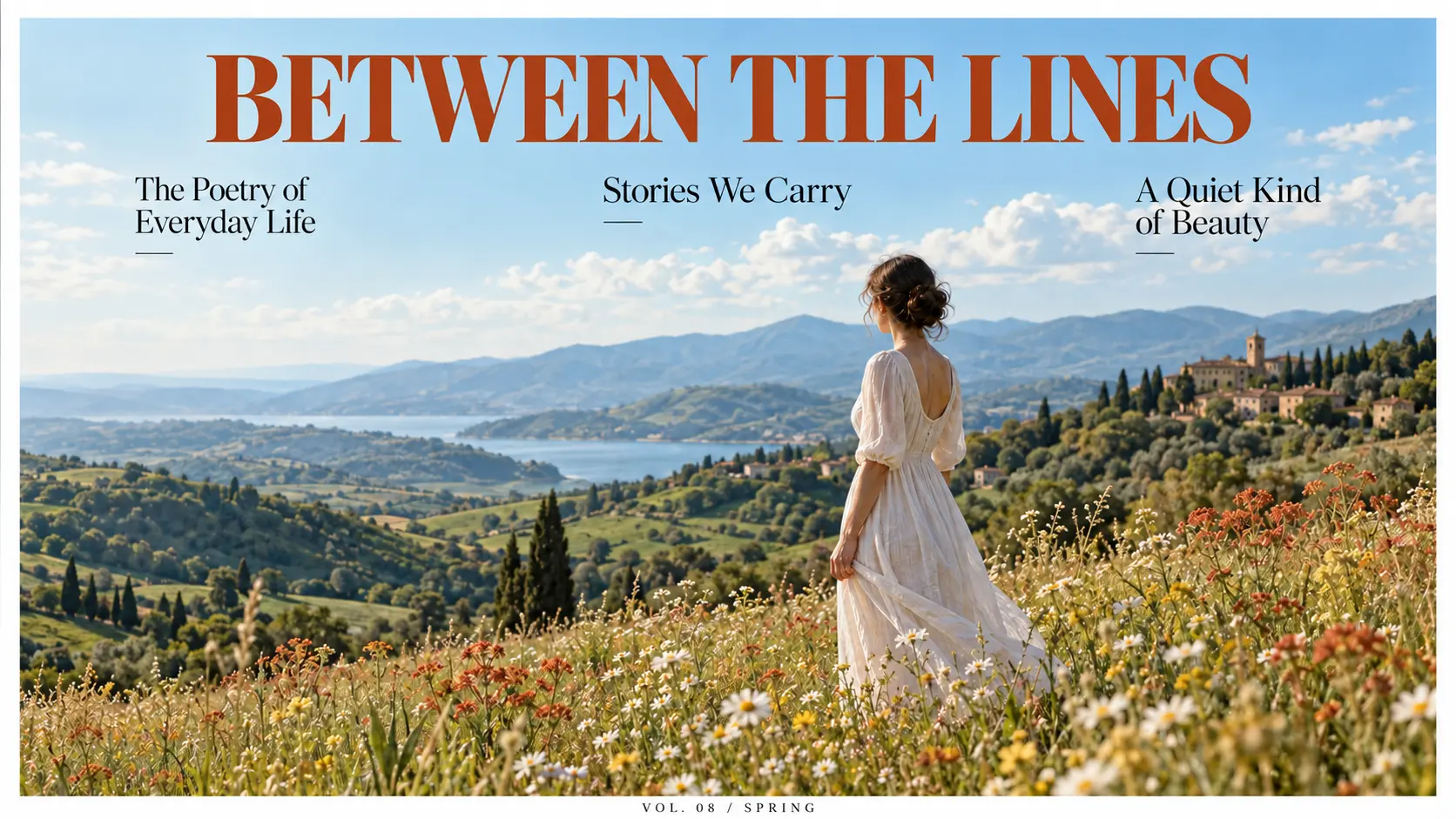
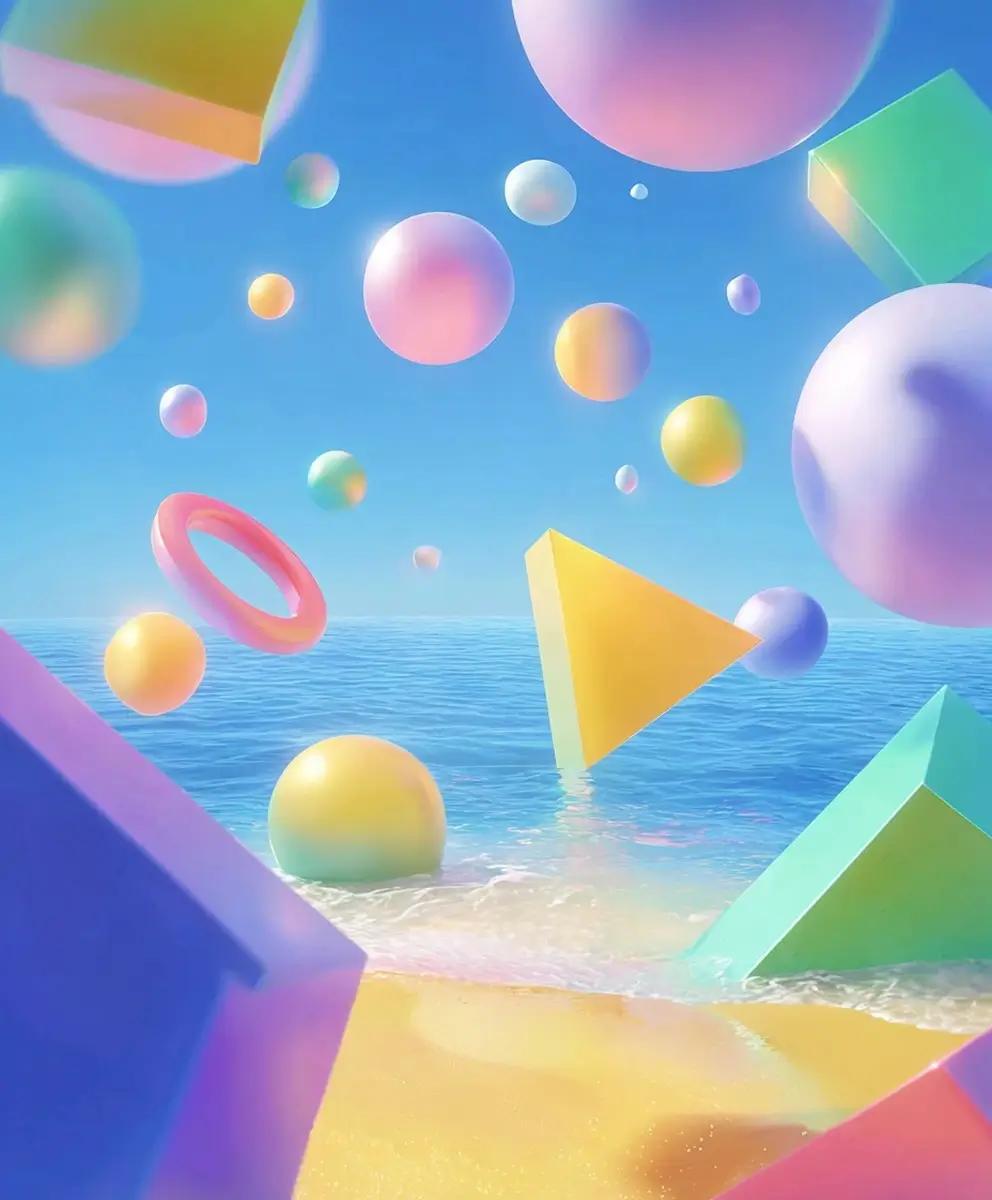
Create a variety of AI images with Qwen Image 2.1 Turbo, from realistic portraits and creative illustrations to product photography, lifestyle scenes, and travel visuals. Describe your ideas through text prompts or upload reference images to guide the generation process. Experiment with different subjects, backgrounds, colors, compositions, and visual styles to bring your creative concepts to life.
What You Can Do with Qwen Image 2.1 Turbo
Qwen Image 2.1 Turbo supports both text-to-image and reference image-to-image generation. You can start with a written description, use existing images as visual references, or adjust your output settings to explore different image formats and resolutions. Discover how these features can support your image creation process.
Generate Images from Text Prompts
Turn written ideas into AI-generated visuals with text-to-image generation. Describe your subject, setting, visual style, and other details in a prompt, and Qwen Image 2.1 Turbo will use your description to generate an image. Whether you want to create a realistic scene, an artistic illustration, or a product image concept, start with a simple idea and add more details to guide the result.

Create Images with Reference Images
Use existing images to provide visual guidance for your AI image generation. Qwen Image 2.1 Turbo supports 1–10 reference images, allowing you to upload multiple visual inputs alongside a text prompt. For example, you can provide references of a character, an object, and a background to give the model more context for your creation. Combine different visual references and describe how you want them to guide the final composition. This makes it easier to explore image concepts based on visual materials you already have.
Generate High-Resolution AI Images
Choose between 1K and 2K resolution to match your image creation needs. Qwen Image 2.1 Turbo supports both options, with 2K as the default resolution. Use 1K for everyday image creation and visual exploration, or choose 2K when you want a larger output for projects that benefit from higher-resolution images. Select your preferred resolution before generating to create visuals in the size that best suits your project.
Create Images in Different Aspect Ratios
Choose from nine aspect ratio options to create images for different layouts and platforms. Qwen Image 2.1 Turbo supports 1:1, 4:3, 3:4, 3:2, 2:3, 16:9, 9:16, 21:9, and 9:21. Create square compositions for social media, portrait images for vertical content, or landscape visuals for websites and presentations. You can also explore ultrawide formats for more panoramic compositions. Select the ratio that fits your creative idea before generating your image.
How to Use Qwen Image 2.1 Turbo on AI Ease
Creating images with Qwen Image 2.1 Turbo on AI Ease is simple. You don't need professional design skills to get started. Just describe what you want to create, choose your image settings, and let AI help turn your ideas into visuals.
- 1
Enter a Text Prompt or Upload Reference Images
Start by entering a text prompt that describes the image you want to create. Include details such as the main subject, background, colors, and visual style to guide the result. You can also upload reference images to provide visual inspiration and help guide the generation process. Combine your prompt with image references to bring your creative ideas to life.
- 2
Choose Your Image Resolution and Aspect Ratio
Customize your image settings to suit your project. Qwen Image 2.1 Turbo supports two resolution options: 1K and 2K, with 2K selected by default. You can also choose from nine aspect ratios, including square, portrait, landscape, and ultrawide formats. Whether you need a square image for a social media post, a vertical visual for mobile content, or a wide composition for a website banner, select the aspect ratio that best fits your intended use.
- 3
Generate and Download Your Image
Once your prompt and settings are ready, click the Generate button to create your image. Preview the result and see how it matches your original idea. If you're happy with the outcome, download your generated image and use it for your creative projects, social media content, marketing materials, or other visual needs.
Best Uses for the Qwen Image 2.1 Turbo AI Image Generator
Looking for new ways to create visual content? Qwen Image 2.1 Turbo can help you explore a wide range of image ideas through text prompts and reference images. From social media graphics to product concepts and digital artwork, discover how you can use an AI image generator in your everyday creative projects.

Create Social Media Content
Make your social media content more visually engaging with AI-generated images. Create image concepts for Instagram posts, Facebook updates, Pinterest pins, and other digital platforms. Experiment with different subjects, colors, and compositions to explore fresh content ideas for personal accounts, creator projects, or brand campaigns.

Design Product Images for Marketing
Explore product image concepts for online stores, advertisements, and promotional campaigns. Describe the product, background, lighting, and visual arrangement you want to create. You can also use reference images to provide visual guidance and explore different ways to present your products.

Create AI Portraits and Character Art
Bring portrait and character ideas to life with AI image generation. Create fictional characters, stylized portraits, profile picture concepts, and imaginative personas. Describe details such as hairstyles, clothing, expressions, poses, and backgrounds to explore different character designs and visual styles.

Make Illustrations for Blogs and Websites
Add original visual ideas to your digital content with AI-generated illustrations. Create featured image concepts for blog posts, supporting visuals for website pages, or graphics for online articles and landing pages. Describe your topic and preferred illustration style to explore images that complement your content.
Develop Creative Concepts and Visual Ideas
Use Qwen Image 2.1 Turbo to explore early-stage creative concepts and turn written ideas into visual references. Generate images for mood boards, presentations, brainstorming sessions, and design projects. Experiment with different prompts, compositions, and aspect ratios to explore possible creative directions.

Create Visual Content with Reference Images
Build on existing visual materials by using reference images to guide new creations. Upload photos, objects, or other visual references and describe how you want to use them in your image. This approach can help you explore new compositions, combine visual ideas, and develop image concepts with more context.
Frequently Asked Questions
What Is Qwen Image 2.1 Turbo?
Qwen Image 2.1 Turbo is an AI image generation model that supports text-to-image and reference image-to-image workflows. You can enter a text prompt to generate an image from scratch or upload 1–10 reference images to guide the generation process. It also supports 1K and 2K resolutions and nine aspect ratio options. You can use Qwen Image 2.1 Turbo on AI Ease to create images online.
Does Qwen Image 2.1 Turbo Support Text-to-Image Generation?
Yes. Qwen Image 2.1 Turbo supports text-to-image generation. Enter a prompt of 3–4,000 characters describing your desired subject, scene, composition, and visual style. The model uses your text description to generate an image based on your creative direction.
Can I Generate Images with Reference Images Using Qwen Image 2.1 Turbo?
Yes. Qwen Image 2.1 Turbo supports reference image-to-image generation. You can upload existing images alongside a text prompt to provide visual guidance. Use reference images to give the model more context about the subjects or visual elements you want to include in your creation.
How Many Reference Images Can I Upload to Qwen Image 2.1 Turbo?
Qwen Image 2.1 Turbo supports 1–10 reference images for image generation. Supported formats include JPG, JPEG, PNG, BMP, TIFF, WebP, and GIF. Each uploaded image must be no larger than 10MB.
What Image Resolutions Does Qwen Image 2.1 Turbo Support?
Qwen Image 2.1 Turbo supports two image resolutions: 1K and 2K. The default resolution is 2K. You can select your preferred resolution before generating an image to match your creative needs.