Free Flux 3 AI Image Generator Online
Bring your ideas into focus with Flux 3 Image on AI Ease. Create images from text, refine existing photos, and combine up to 10 references to shape your vision. With output up to 4K, you can explore detailed product scenes, expressive portraits, and original artwork for your next project.
How to Create Images with Flux 3 on AI Ease
- 1
Choose Flux 3 and Describe Your Idea
Enter a prompt describing your subject, setting, style, and composition. To edit an existing image or guide the result, upload your images and explain how they should be used.
- 2
Set Your Image Preferences
Choose from the available aspect ratios and resolutions to match your project. Refine your instructions with details such as lighting, colors, and object placement, then click Generate.
- 3
Review, Refine, and Download
Check the generated image and adjust your prompt if anything needs to change. Once you’re happy with the composition and details, download your image for your project.
Create and Edit with Flux 3 AI Image Generator
Take your ideas from a written description to a finished visual. Flux 3 brings text-to-image generation, high-resolution output, image editing, and multiple references together on AI Ease, giving you flexible ways to create something new or develop an image you already love.

Turn Your Words into Original Images
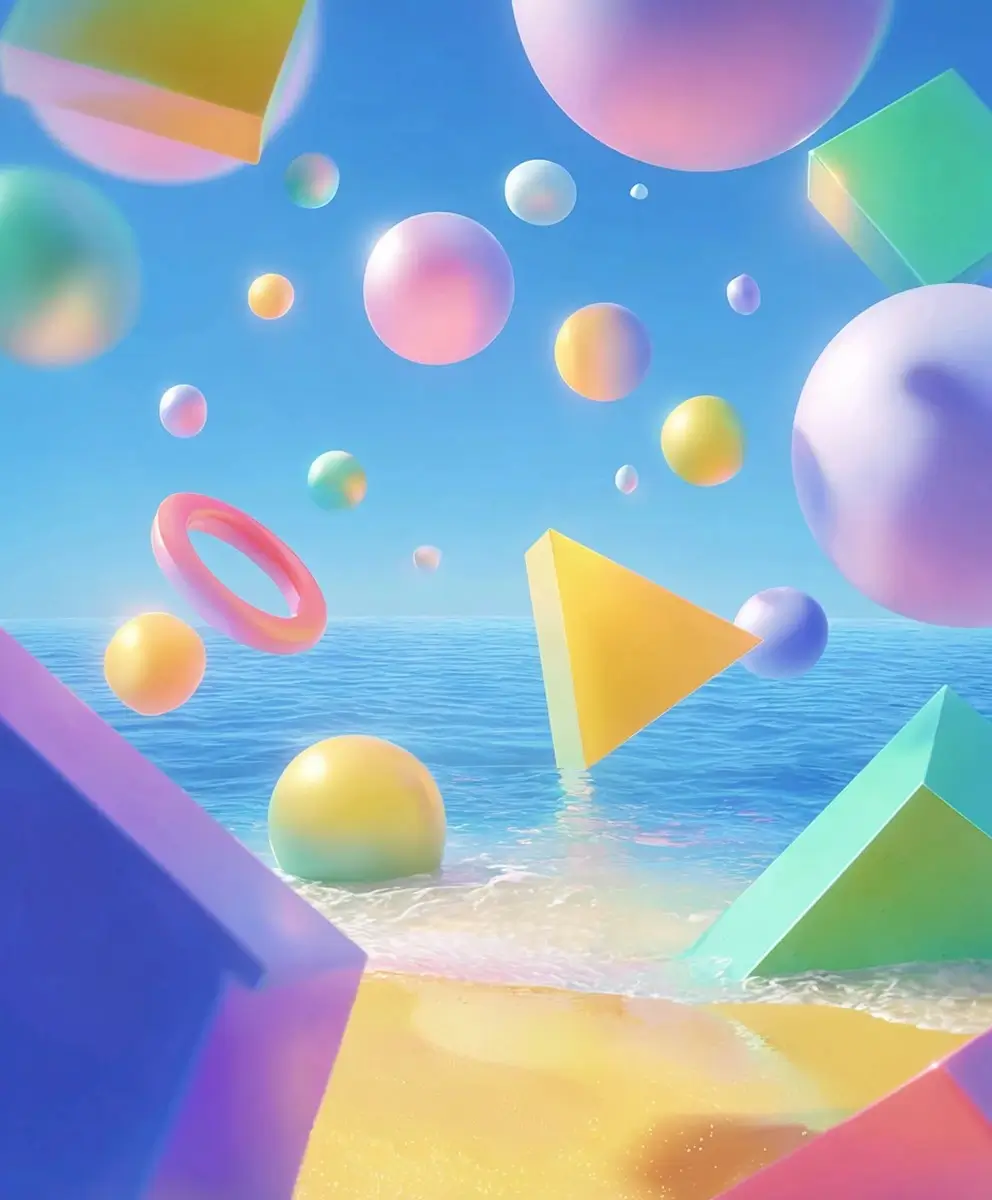
Start with an idea and describe the image you want to see. Flux 3 turns text prompts into visuals, from sunlit interiors and editorial portraits to imaginative illustrations. Include the subject, setting, lighting, and mood to give your concept a clear direction. You might ask for a ceramic vase beside an open window or a futuristic city after the rain. With AI Ease, you can explore different interpretations, adjust your description, and develop a visual that fits the story you want to tell.
Bring Fine Details into Focus with 4K
Give intricate textures and carefully styled scenes more room to shine. Flux 3 supports native image generation up to 4K, helping you create detailed visuals for website graphics, product showcases, and creative projects. Explore the weave of a linen shirt, reflections on a glass bottle, or the delicate petals in a floral arrangement. Higher-resolution output also gives you more flexibility when cropping an image for different layouts. Choose the available resolution that suits your project, then review the result at full size before preparing your final design.
Edit Your Images with Simple Instructions
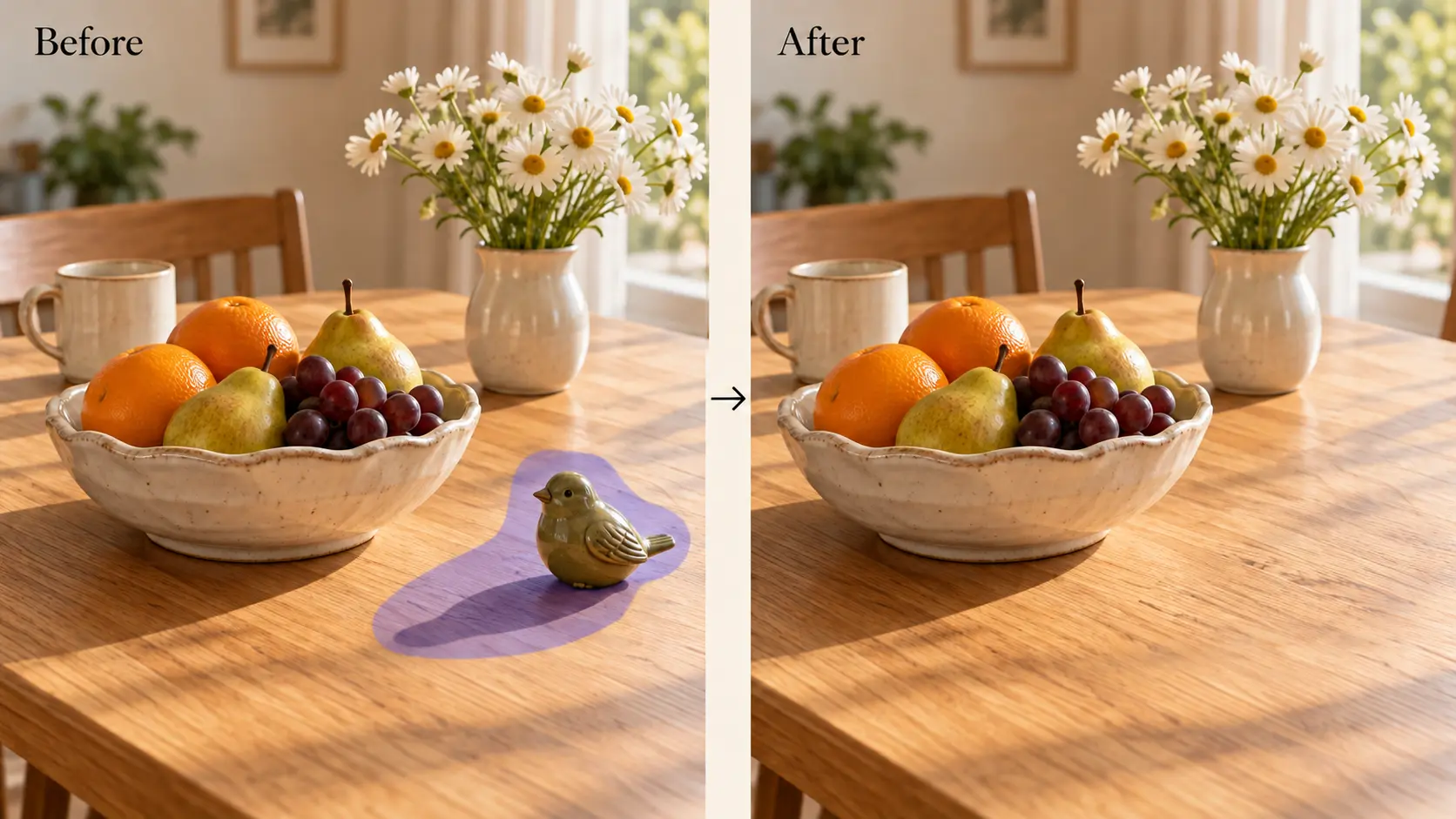
Keep developing an image when a few details need another look. Upload a photo and describe what you want to change, such as replacing a background, adjusting an outfit, or removing an unwanted object. Flux 3 supports targeted image editing, helping you refine part of a scene while retaining its overall direction. For example, turn a daytime café setting into a warm evening scene or change a chair’s upholstery to soft green. State what should stay the same to guide a more focused revision.
Shape Your Vision with Up to 10 References
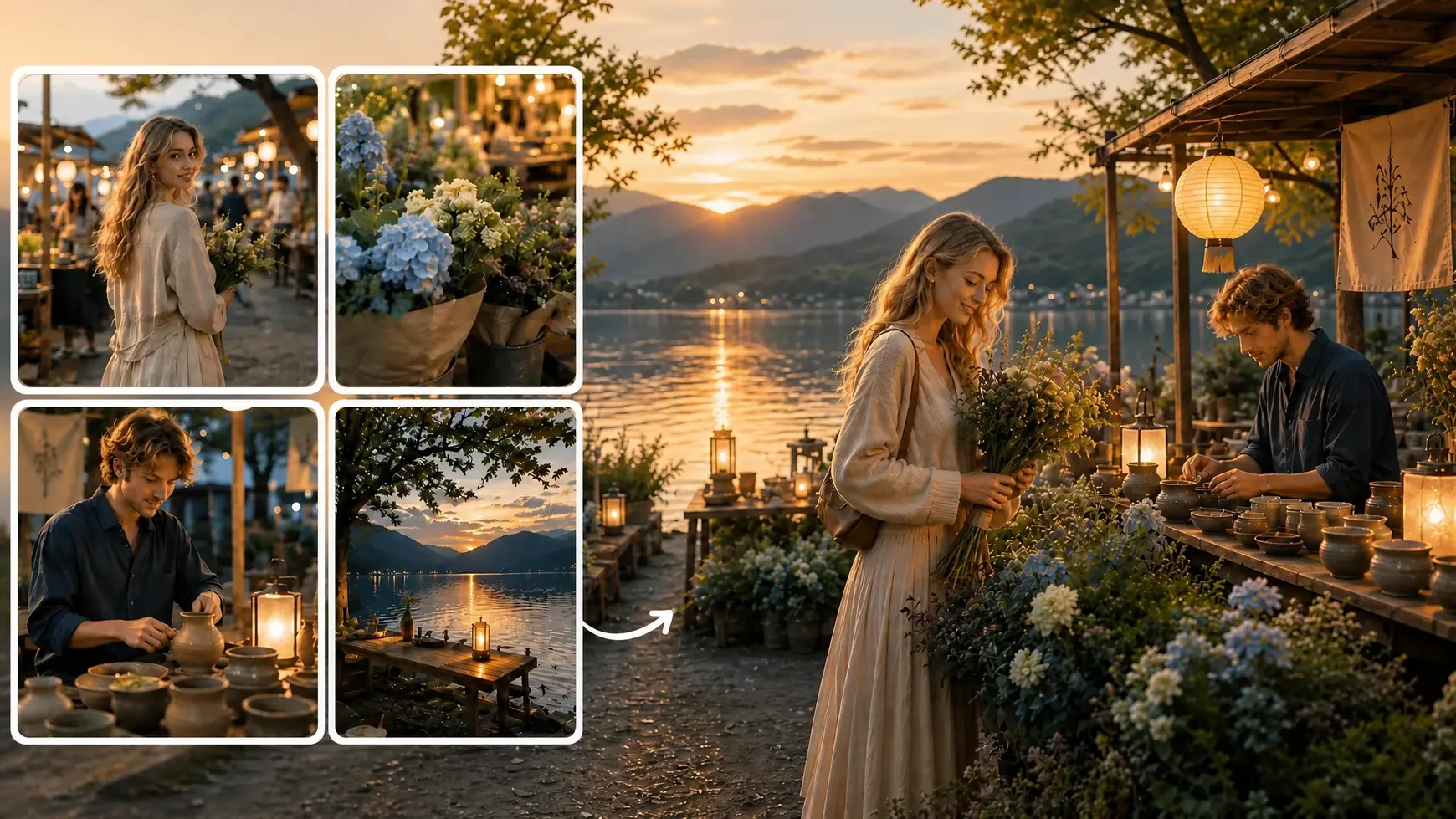
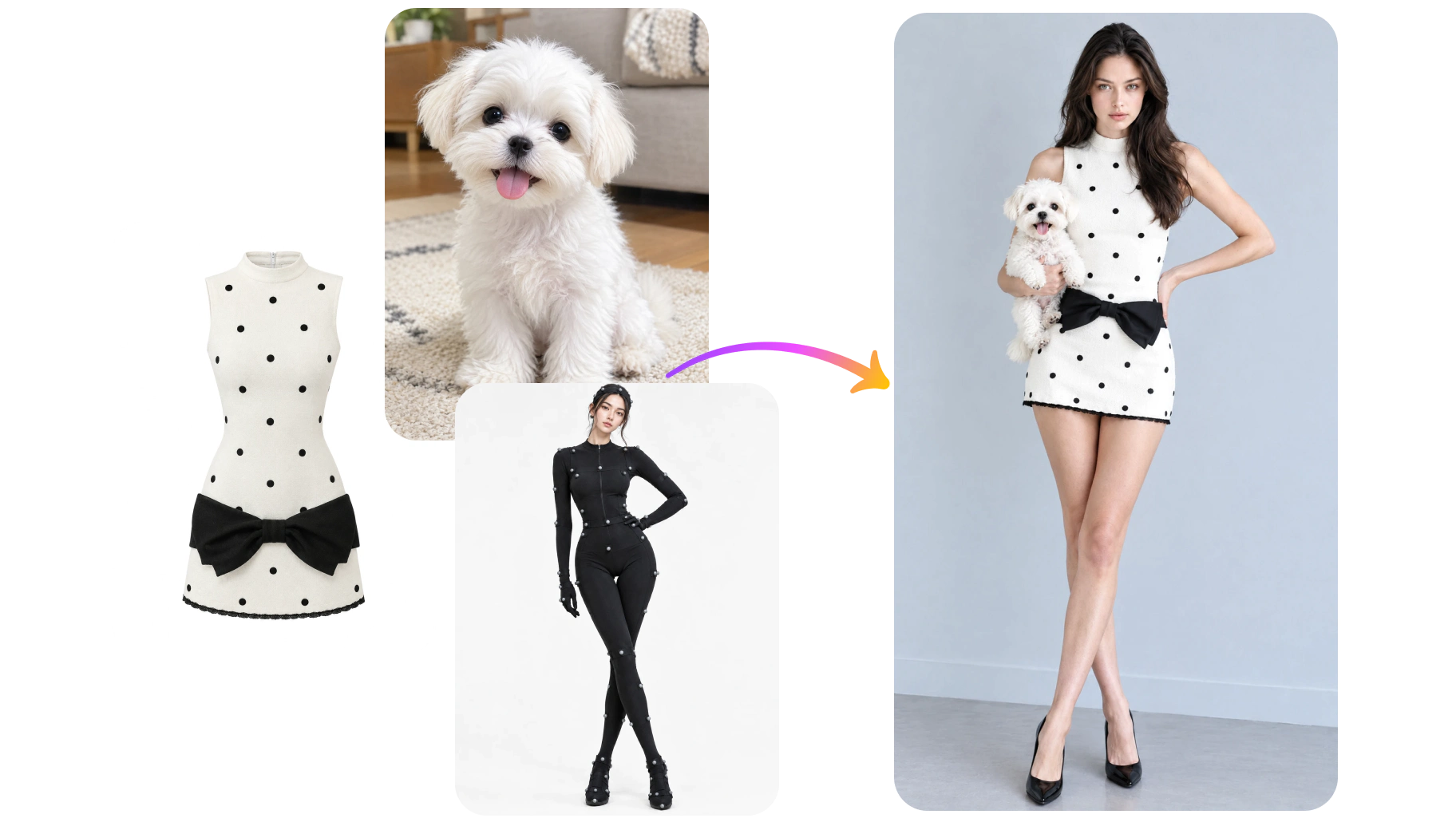
Some ideas are easier to show than explain. Add up to 10 reference images to guide the subjects, objects, setting, or visual style of your result. You could bring together a sofa, a rug, and a room reference to explore an interior concept, or pair a product photo with inspiration for its surroundings. Explain what each image should contribute so Flux 3 has a clearer direction. This approach helps you develop a unified composition from separate visual ideas, especially when a text prompt alone leaves too much open to interpretation.
Explore What You Can Create with Flux 3

Give Products a Setting That Fits
Help customers imagine how a product could fit into their everyday lives. Start with a product reference and describe a setting that complements its purpose, such as a coffee maker in a bright kitchen or hiking boots beside a woodland trail. Flux 3 can help you explore styled scenes for product pages, collection banners, and promotional content. Use your prompt to specify the camera angle, surrounding props, and lighting.

Build a Visual Direction for Your Next Campaign
Turn a campaign theme into a set of visual concepts your team can discuss. Explore different settings, color palettes, and compositions for a product launch, seasonal promotion, or brand announcement. A summer skincare campaign might begin with sunlit stone, fresh citrus, and soft blue shadows, while a winter concept could feature warmer light and richer textures. Use Flux 3 to develop these directions and refine the strongest ideas. Describe where your headline will sit so the image leaves suitable space for the final advertising layout.

Create Portraits with an Editorial Feel
Explore portraits where styling, lighting, and atmosphere work together. Describe a close-up beauty image with soft window light, a fashion portrait against a sculptural backdrop, or a relaxed outdoor scene with natural movement. Flux 3 gives you room to experiment with wardrobe, color, framing, and mood as you develop a concept. Reference images can help communicate the look you have in mind. Use the results to build mood boards, explore creative directions, or prepare visual references for a future shoot, then refine the details that matter most.

Make Social Content Around Your Next Idea
Give each post a visual that connects with what you want to say. Create playful illustrations for an announcement, atmospheric imagery for a personal story, or themed backgrounds for a recurring content series. With Flux 3 on AI Ease, you can describe a fresh concept while using references to guide familiar colors and styling. Plan the composition around the post’s purpose, leaving room for any captions you will add later. This makes it easier to develop varied content while maintaining a recognizable look across your feed.

Picture a Room Before You Restyle It
Explore how furniture, materials, and decorative details might come together in a space. Combine references for a chair, lamp, rug, or color palette, then describe the room you want to create. You could compare a calm reading corner with pale wood and linen against a more expressive version with patterned textiles and bold accents. Flux 3 helps turn these choices into visual concepts you can review side by side. Use the images to communicate a decorating direction and narrow your preferences before checking real dimensions, finishes, and product availability.

Develop Worlds for Your Stories
Give an imagined world a visual starting point. Create character concepts, atmospheric locations, and key scenes for stories, games, or personal art projects. Describe an overgrown observatory, a seaside town at dusk, or an explorer’s workshop filled with unusual objects. References can guide recurring costumes, architectural details, or the overall palette as you expand the concept. Flux 3 lets you explore how these elements work together in an image, helping you develop a clearer sense of place and mood before moving into illustration, writing, or production.
Frequently Asked Questions
Have more questions? You can email service@aiease.ai, and we'll be happy to help you.
What is Flux 3 Image?
Flux 3 Image is an AI image generation and editing model developed by Black Forest Labs. It creates images from text, edits existing visuals through written instructions, and combines multiple image references to guide a new composition.
How is text-to-image generation different from image editing?
Text-to-image generation starts with a written description and creates a new visual. Image editing starts with an existing image and uses your instructions to change specific elements, such as the background, clothing, colors, or objects in the scene.
Does Flux 3 support native 4K images?
Yes. Flux 3 Image supports native generation up to 4K. This means it can generate at that resolution rather than relying only on enlarging a smaller image afterward. The resolution options available to you depend on the settings offered in AI Ease.
How many reference images can I use?
Flux 3 supports up to 10 reference images. You can use them to guide different elements, such as a subject, product, background, or style. Explain what each reference should contribute so the model can better understand how to combine them.
Can I change one part of an image?
Yes. Flux 3 supports targeted edits through text instructions. Name the element you want to change and describe the desired result. If other details should remain consistent, mention them in your prompt and check the generated image for any unintended changes.
Can Flux 3 generate text inside images?
Yes. You can request text for signs, posters, covers, and similar visual concepts. Put the wording in quotation marks and specify where it should appear. Always review the result for spelling, spacing, and readability before using it in a finished design.
What should I include in my prompt?
Start with the main subject and action, then add the setting, lighting, style, and composition. For example: “A pale blue ceramic teapot on a wooden breakfast table, soft morning light, linen napkin, editorial photography, open space on the left.” For edits, clearly state what should change and what should stay.
Do I need design experience to use Flux 3?
No design experience is required to get started. Describe your idea in everyday language, add references if helpful, and review the result. You can adjust your instructions as you explore different looks and become more familiar with how the model responds.