PixVerse V6 AI Video Generator With Sound and Cinematic Control
Create videos from text or images with PixVerse V6 on AI Ease. Direct camera movement, build connected shots, and generate sound alongside your visuals. Make clips up to 15 seconds long in 1080p for product ads, social content, and short cinematic stories.
Give Your Videos a Clearer Creative Direction
Turn Your Ideas Into Directed Scenes With PixVerse V6
A product reveal needs the camera to linger on a detail. A character scene needs an expression to carry through the next shot. PixVerse V6 helps you shape these moments with more accurate camera movement, expressive character performance, and stronger continuity between shots. Start with a written scene or an image on AI Ease, then describe the action and pacing to create a video that follows your brief.
Put the Camera Where the Story Needs It
Guide the camera with instructions such as a slow push-in, a tracking shot, or a wide reveal. PixVerse V6 follows changes in viewpoint and framing with greater accuracy, helping you draw attention to a product detail, follow a moving subject, or reveal the setting around a character. Describe what the camera should show and how it should move, rather than relying on a general "cinematic" prompt.
Tell a Short Story Across Connected Shots
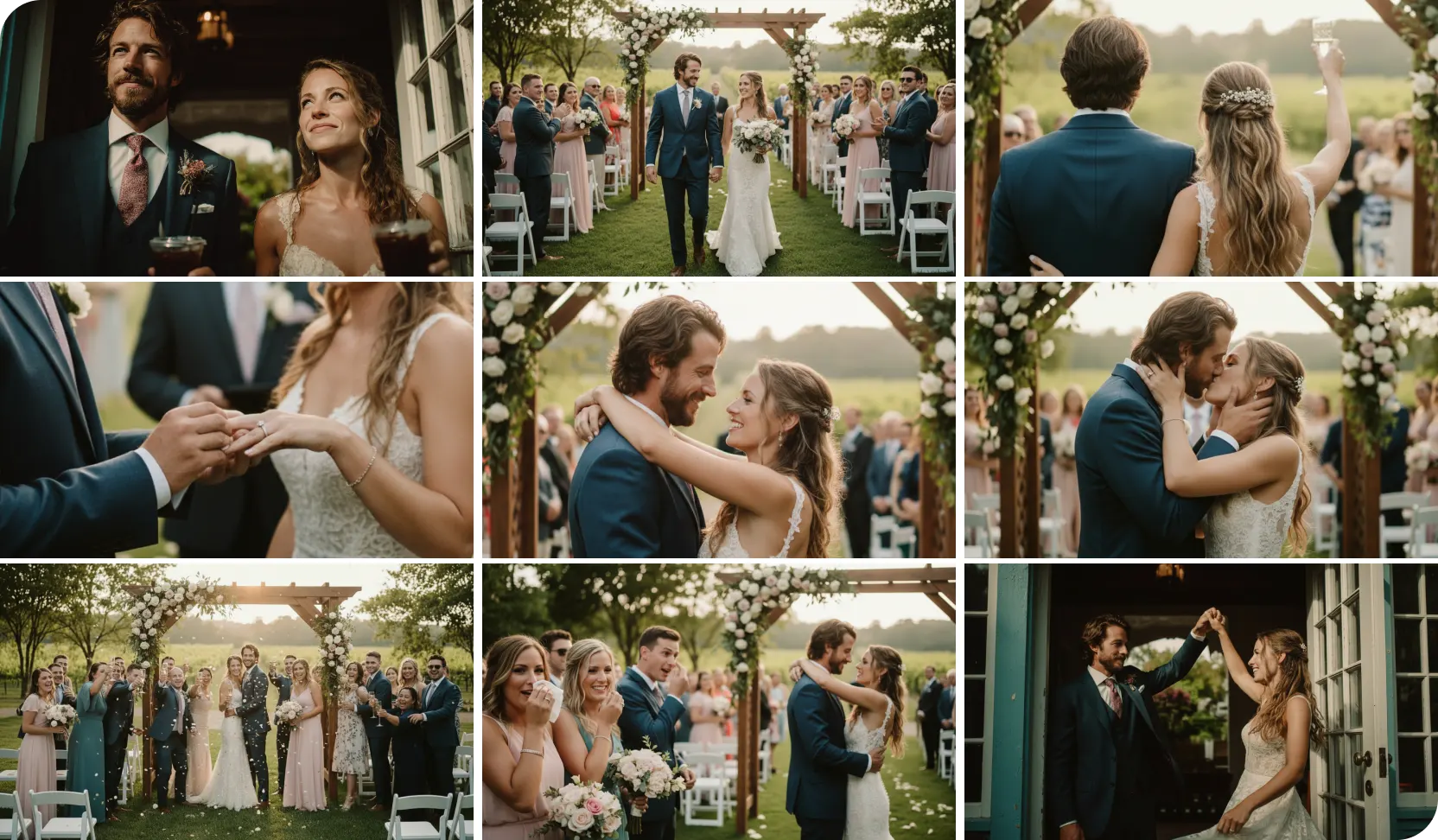
Give your video a beginning, a reveal, and a closing moment in one generation. PixVerse V6 supports multi-shot sequences with changes in framing and stronger character continuity. Move from a wide establishing shot to a character reaction, then cut to the detail that matters. With up to 15 seconds at 1080p, you have room for a short sequence that develops beyond a single animated image.
Create Sound Alongside the Scene
PixVerse V6 can generate dialogue, sound effects, background music, and ambient sound together with the video. Describe the audio as part of your scene: rain against a window, footsteps through an empty hallway, or a brief line of dialogue. Generating picture and sound together helps establish the atmosphere from the first draft and reduces the need to build every audio layer separately.
What Can You Create With PixVerse V6?

Product Launch Videos
Use a product image to plan a close-up, a moving reveal, or a short lifestyle scene. Try different settings and camera directions for the same campaign before arranging a shoot. Create video concepts for launch ads, ecommerce promotions, and landing pages on AI Ease.

Reels, Shorts, and Social Ads
Build a short clip around an opening moment that catches attention: a sudden reveal, an expressive reaction, or a shift in perspective. Use PixVerse V6 to develop visual hooks for TikTok, Instagram Reels, and YouTube Shorts, then explore different versions of the same idea.

Character Scenes and Short Films
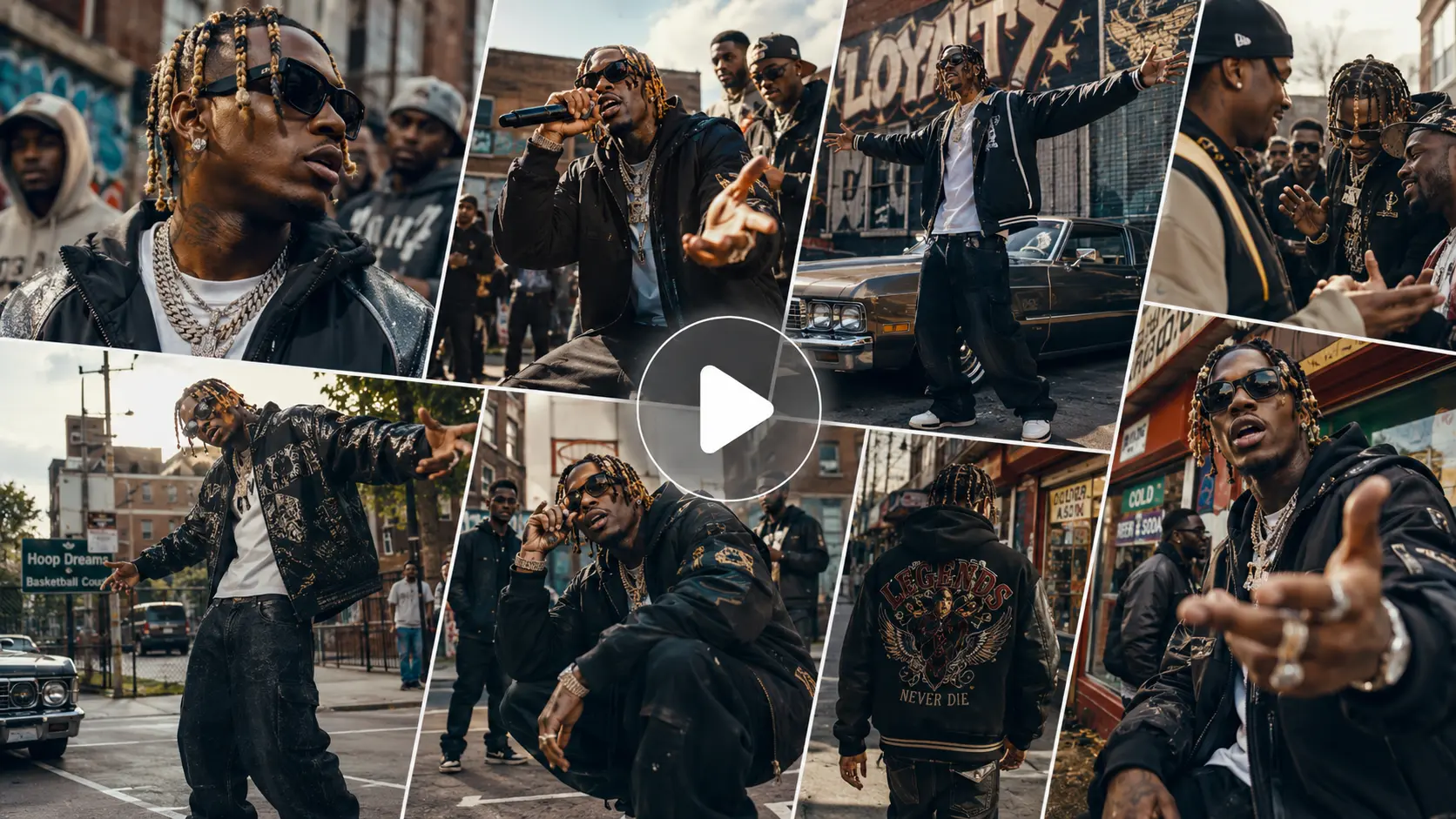
Write a scene where expression and body language carry the story. A hesitant glance, a pause before speaking, or a change in posture can give a short sequence more depth. Combine character direction with shot changes to create story concepts, trailer moments, and animated scenes.

Fashion and Beauty Campaigns
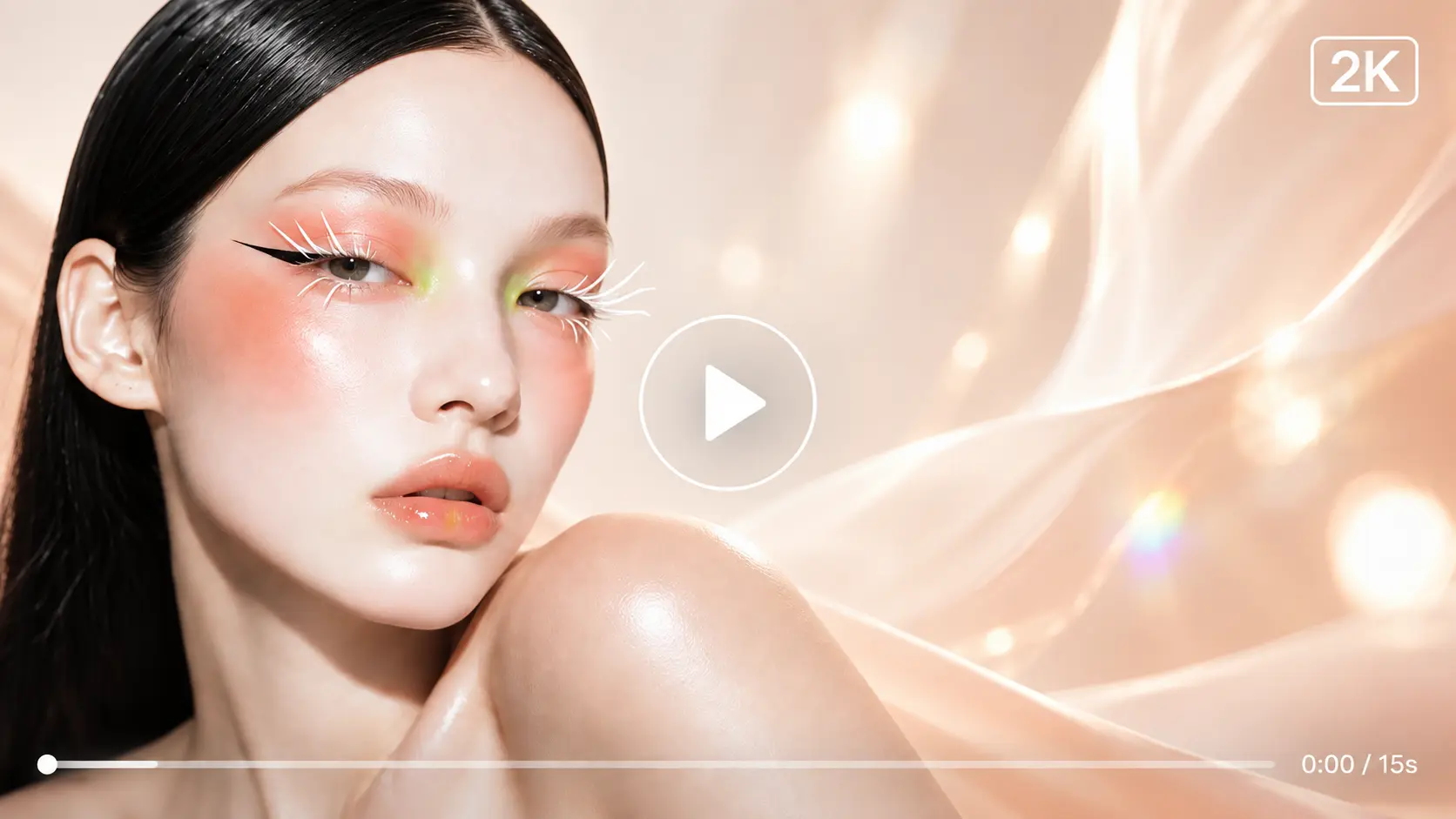
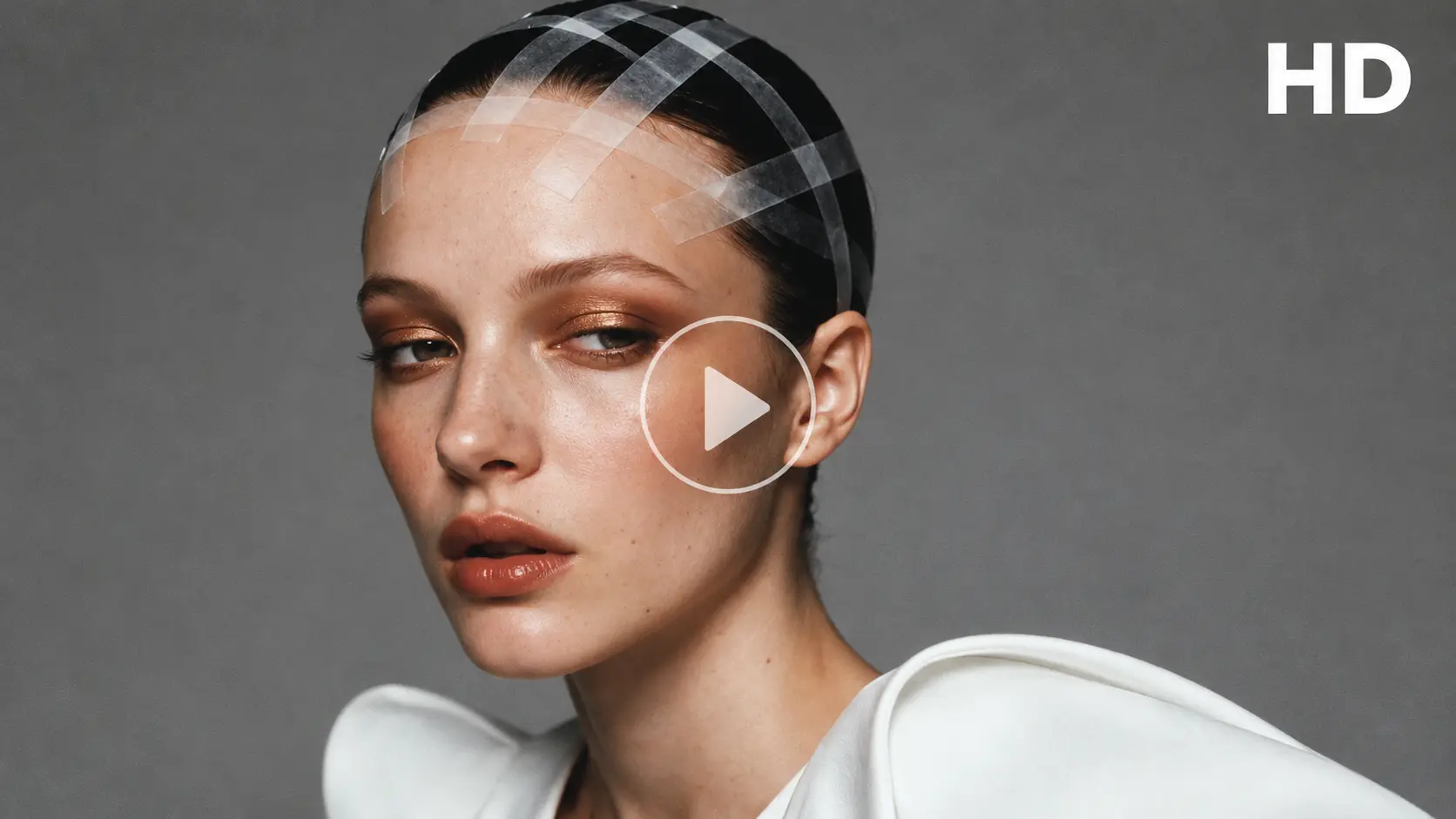
Animate a fashion portrait or beauty visual with a slow camera move, a turn toward the lens, or fabric moving in a breeze. Describe the lighting and pace to match the collection or campaign. Develop editorial video concepts from existing images without planning a new shoot for each direction.
How to Use PixVerse V6 on AI Ease
- Step 1
Choose PixVerse V6
Open AI Ease's AI video generator and select PixVerse V6. Choose Text to Video to create a scene from a prompt, or Image to Video to animate an existing photo or illustration.
- Step 2
Describe the Action and Camera Movement
Write what happens in the scene, how the subject moves, and where the camera goes. Upload your image if you are using Image to Video. Add lighting, mood, and sound details; for a multi-shot idea, describe each shot in order.
- Step 3
Set Your Output and Generate
Choose the duration, resolution, and available format settings for your project. Click Generate, preview the result, and download the video. Adjust your prompt when you want to change the movement, framing, or pace.
FAQs About PixVerse V6
What Is PixVerse V6?
PixVerse V6 is an AI video generation model developed by PixVerse. It creates videos from text prompts or images and supports native audio, multi-shot storytelling, and camera direction, with output up to 15 seconds long at 1080p.
Can I Turn a Photo Into a Video With PixVerse V6?
Yes. PixVerse V6 supports image-to-video generation. Upload a photo, product image, portrait, or illustration, then describe the movement you want. For example, ask the camera to move closer to the subject while the person turns toward the lens.
How Long Can My Videos Be, and What Resolution Can I Use?
PixVerse V6 supports clips from 1 to 15 seconds and resolutions up to 1080p. A short clip works well for a quick reveal or a simple action, while a longer clip gives a camera move or short sequence more time to unfold.
Can PixVerse V6 Generate Videos With Sound?
Yes. PixVerse V6 supports native audio generation, including dialogue, sound effects, ambient sound, and background music. Include the sounds you want in your prompt so the audio can be generated together with the visuals.
How Should I Write a PixVerse V6 Prompt?
Describe a clear subject and action, then add the camera movement, setting, lighting, and sound. Keep the sequence manageable for your chosen duration. For example: "A ceramic perfume bottle stands on a pale stone shelf. The camera slowly tracks right as morning light moves across the glass. Soft piano music and distant birds, calm editorial mood."