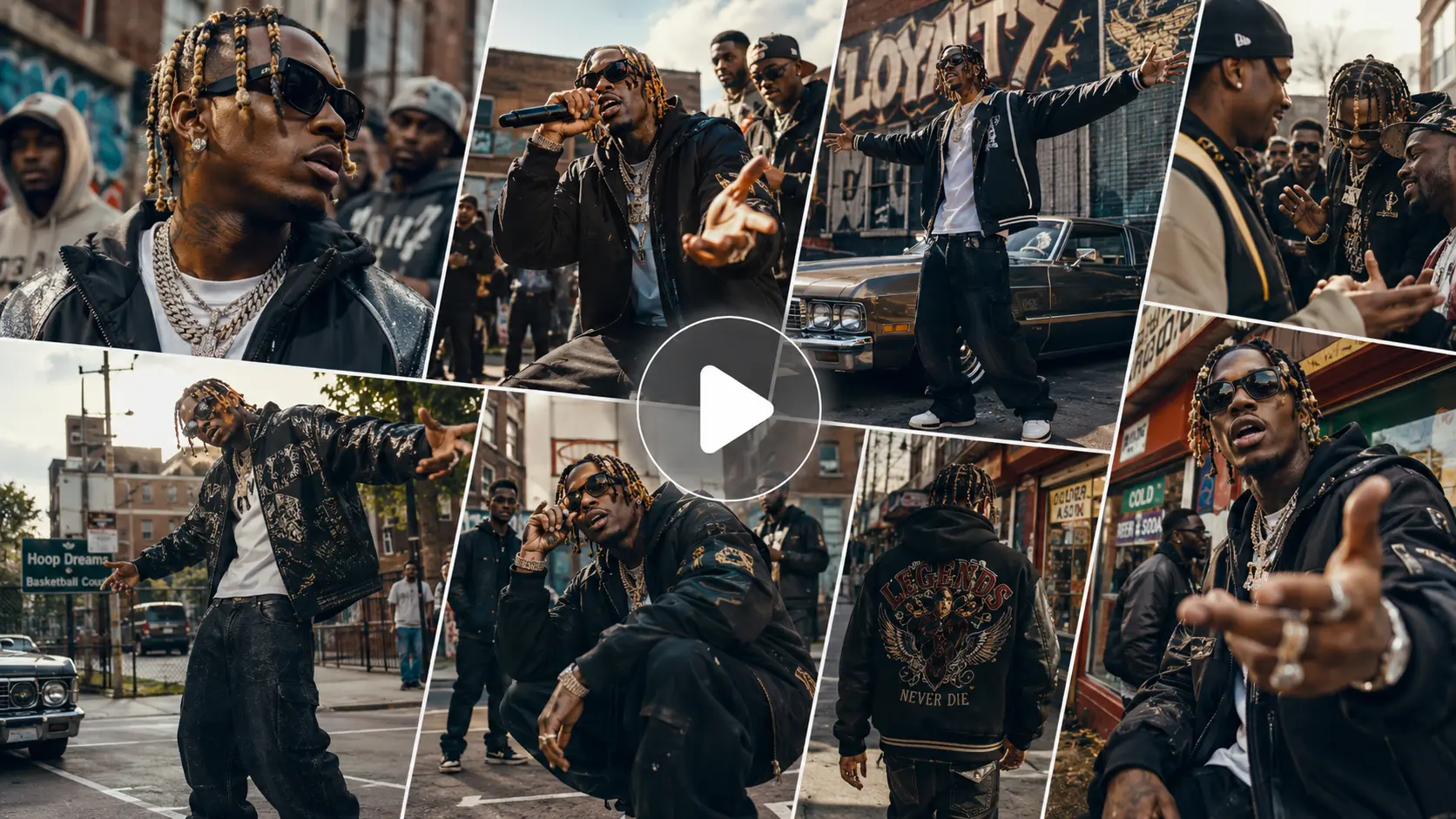
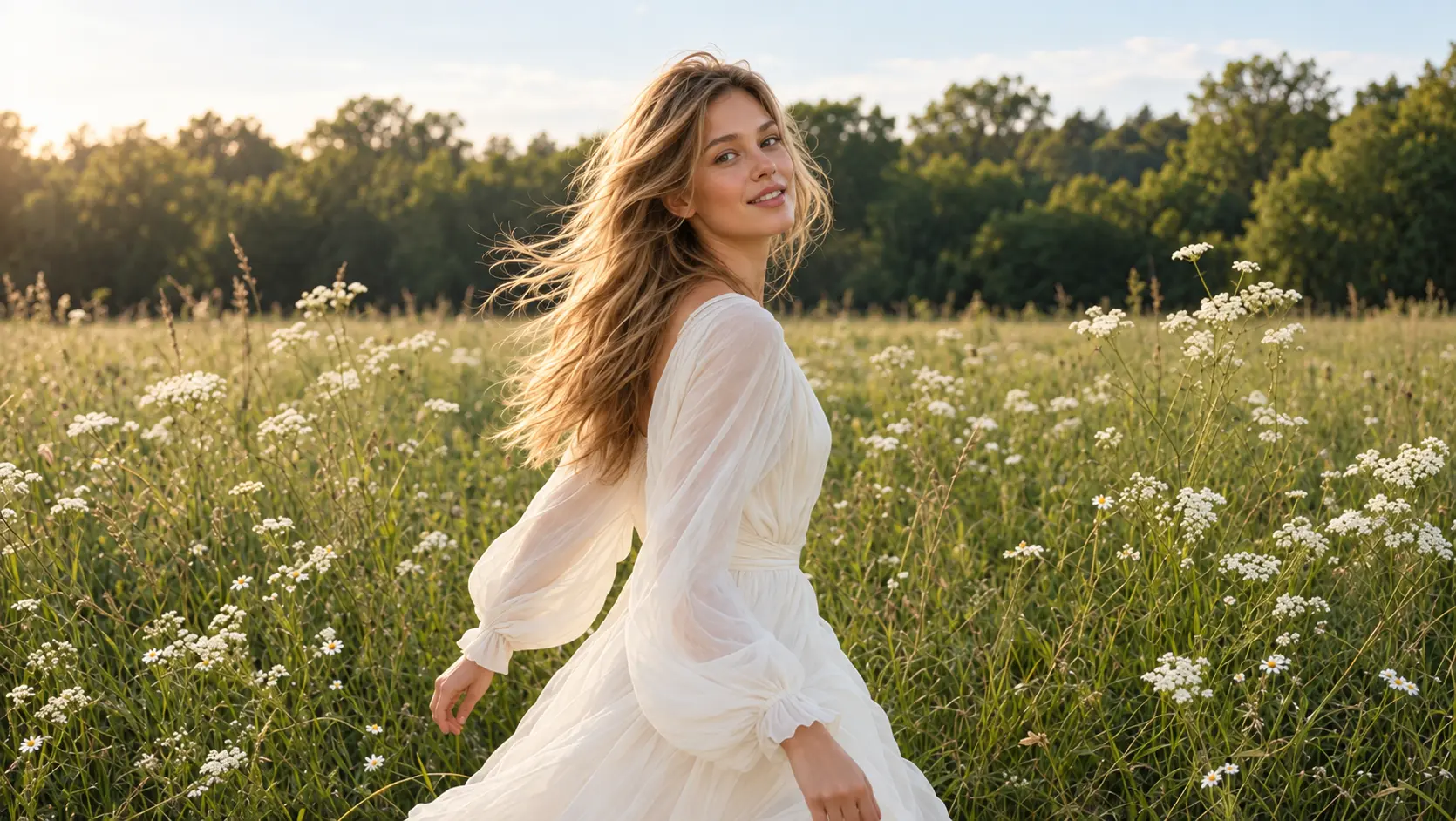
Create AI Videos Faster with Vidu Q3 Turbo
Turn text and images into AI videos with smooth motion and stable visuals. Vidu Q3 Turbo helps you explore ideas quickly, with fast generation, optional sound, and flexible aspect ratios for different platforms. Create product clips, social content, and cinematic scenes with AI Ease.
How to Use Vidu Q3 Turbo on AI Ease
- 1
Choose Your Starting Point
Open AI Ease in your browser and select Vidu Q3 Turbo. Enter your prompt and upload an image if needed to guide the result.
- 2
Describe the Motion
Explain what should happen in the clip, including subject movement, camera direction, and atmosphere. If you want generated audio, add a short description of the dialogue or sound effects.
- 3
Adjust Settings and Generate
Choose from the available duration, resolution, and aspect ratio options, then set whether to include sound. Click Generate to create your video.
- 4
Preview and Download
Watch the result and check the movement, framing, and audio. Refine your prompt if needed, then download the video you want to use.
Turn Ideas into Videos with Vidu Q3 Turbo
Bring a new scene to life or add movement to an image you already have. Vidu Q3 Turbo combines fast video generation with flexible creative controls, helping you shape the action, sound, and framing for your project. Explore different directions, refine the details, and create short videos with smooth movement and a cohesive visual style.

Create Videos from Text or Images
Start with a written idea or an image you already have. With text-to-video generation, describe the subject, setting, action, and camera movement to build a scene from scratch. With image-to-video generation, upload a product photo, portrait, or illustration and explain how you want it to move. Vidu Q3 Turbo uses your image as the starting frame, giving the clip a clear visual direction. Explore a gentle camera push, drifting clouds, or a character turning toward the viewer. Choose the starting point that fits your project and bring your ideas into motion.
Lightning-Fast AI Video Generation
Move from a new concept to a video draft with less waiting. Vidu Q3 Turbo is designed for faster generation, making it practical to test several creative directions while an idea is still fresh. Compare a slow camera pan with a close-up reveal, adjust the action, or try a different mood before choosing your favorite result. This faster workflow is useful for daily content, campaign variations, and early production planning. Spend more of your time reviewing ideas and refining the strongest ones, especially when you need several short clips for the same project.
Generate Videos with Optional Sound
Choose whether your video includes generated sound or stays silent. Turn audio on to create visuals with synchronized sound, including dialogue and sound effects, then describe the sounds you want in your prompt. For example, pair a rainy street scene with falling rain and distant traffic, or add footsteps to a character walking through a hallway. Turn audio off when you plan to add your own soundtrack, voiceover, or sound design later. Optional sound controls help you prepare clips for different workflows, whether you want an atmospheric scene or footage for further editing.
Flexible Aspect Ratios for Different Platforms
Create videos in a format that fits where you plan to share them. Vidu Q3 Turbo supports landscape, portrait, and square formats for text-to-video generation, including 16:9, 9:16, 1:1, 4:3, and 3:4. Use 9:16 for TikTok, Instagram Reels, or YouTube Shorts, 16:9 for YouTube videos and presentations, or 1:1 for square social posts. Choose your format before generating so you can plan the subject placement and camera movement around the frame. For image-to-video projects, start with an image composed for your intended layout to keep important details in view.
Best Uses for Vidu Q3 Turbo
A product launch, a daily social post, and a film concept each need a different kind of video. Vidu Q3 Turbo gives creators and teams a quick way to explore these ideas through short clips. Start with a description or an existing visual, then shape the action, mood, and framing for the audience you want to reach. Use the results in your content or as a starting point for a larger production.

Bring Product Images to Life
Turn a static product image into a short promotional clip for an online store, a collection launch, or a seasonal campaign. Start with a clear photo and describe a simple camera movement, such as a slow push toward the item or a gentle pan across the scene. Add subtle environmental motion, like a moving curtain or shifting leaves, to give the setting more life. This is useful when you want to explore video content from an existing image library. Review the product's shape, colors, and packaging details before choosing the clip for your project.

Create Videos for Social Media
Keep your content calendar moving with short clips for posts, stories, and channel updates. Create a visual hook for a new topic, animate a favorite image, or develop a scene around a seasonal theme. A coffee cup beside a rainy window, a colorful fashion moment, or a playful pet scene can become the starting point for your next video. Choose a format that suits the platform and guide the movement with a focused prompt. Generate variations to compare pacing and mood, then use the strongest clip as part of your next upload.

Test Different Advertising Concepts
Explore advertising ideas before investing in a full shoot or committing to one creative direction. Use Vidu Q3 Turbo to generate short scenes that communicate different moods, settings, or opening moments. For example, compare a calm morning routine with an energetic outdoor scene for the same campaign theme. Change one element at a time to make each variation easier to evaluate. Marketing teams and agencies can use these clips during concept development, internal reviews, or client presentations. Select the direction that best supports the message, then develop it further in your usual production and editing workflow.

Preview Scenes for Short Films
See how a story moment could look before planning the full production. Describe a character entering a room, a quiet reaction, or a wide shot that establishes the setting. Use camera direction, lighting, and movement to explore the scene's mood, then compare different interpretations of the same moment. Short generated clips can help writers, filmmakers, and small studios communicate ideas that are difficult to explain through text alone. Build individual shots for a storyboard or pitch, and use them to discuss framing, pacing, and atmosphere before moving into filming or a longer edit.

Animate Illustrations and Character Art
Give illustrated characters, digital paintings, and concept art a new sense of movement. Upload your artwork and describe a focused action, such as a character blinking, hair moving in a breeze, or soft light passing through the background. Starting from an existing image helps establish the scene's style and composition before motion is added. Artists can explore animated portfolio pieces, character introductions, or short previews of a larger creative project. Test subtle movement first, then refine the prompt to find an animation that supports the artwork's mood and keeps attention on the details that matter.

Add Motion to Lessons and Presentations
Add short visual scenes to a lesson, training deck, or business presentation when motion helps explain the idea. Create an everyday interaction for a language exercise, a welcoming office scene for onboarding, or a simple visual introduction to a new topic. Describe one clear action and keep the background focused so viewers can follow the main subject. Silent clips work well alongside your own narration, while generated sound can add atmosphere where useful. Teachers, course creators, and business teams can use these videos to make supporting materials more engaging and illustrate situations that are difficult to capture with stock footage.
Frequently Asked Questions
Have more questions? You can email service@aiease.ai, and we'll be happy to help you.
What is Vidu Q3 Turbo?
Vidu Q3 Turbo is an AI video generation model that turns text prompts or starting images into short videos, with support for optional synchronized audio. The Turbo version focuses on faster generation, making it useful for creative experiments, video drafts, and content variations.
How long can my videos be?
Vidu Q3 Turbo supports clips from 1 to 16 seconds in text-to-video and image-to-video modes. Choose from the duration options available on AI Ease for your selected mode.
What video resolutions does Vidu Q3 Turbo support?
The model supports 540p, 720p, and 1080p output. Choose a resolution from the options available on AI Ease based on how you plan to use the video. Lower resolutions can suit early previews, while 1080p provides a larger frame for your selected result.
Can I generate videos with sound?
Yes. Vidu Q3 Turbo supports video generation with synchronized audio, including dialogue and sound effects. Enable audio and describe the sound you want in your prompt. You can also turn audio off to generate a silent clip for your own soundtrack or voiceover.
Which aspect ratios are supported?
Text-to-video generation supports 16:9, 9:16, 1:1, 4:3, and 3:4. Choose a format that suits your intended layout, such as vertical for short social videos or landscape for presentations. For image-to-video, prepare a starting image with framing that suits your project.
Do I need video editing experience?
You can start with a written description or an uploaded image, then choose your settings and generate a clip. Advanced editing skills are not needed for this workflow. Preview the result, refine your prompt if necessary, and download the version you want to use.