How to Make Background Transparent in Gimp [Full Guide]
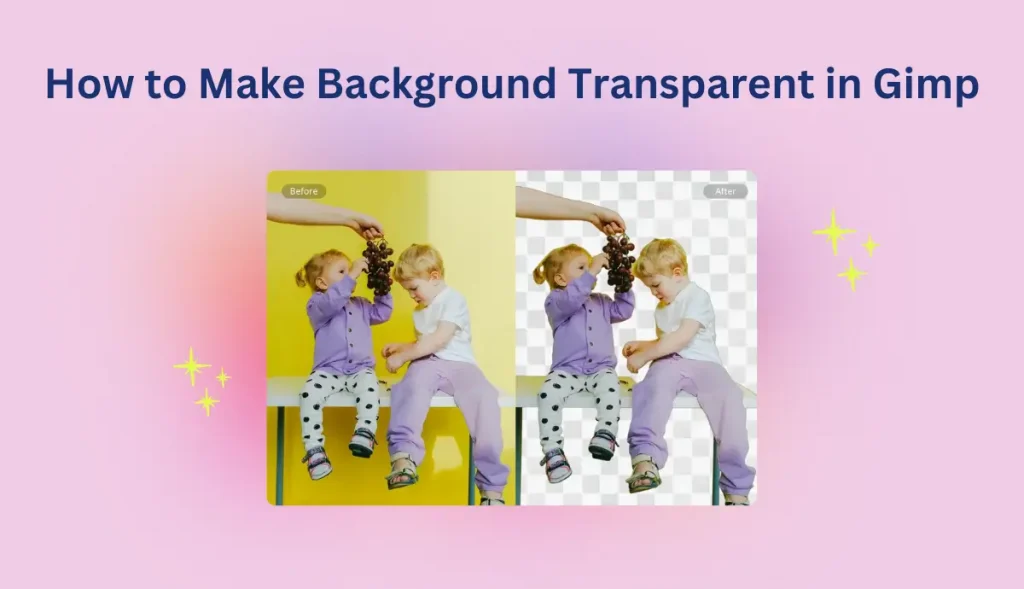
Looking to make image background transparent? Whether editing product photos, designing a logo, or creating digital art, removing the background from an image can be essential. GIMP, a powerful and open-source image editing program, is one of the best tools for this task.
GIMP is known for its rich set of features, and one of the most useful is removing a picture’s background. So, how to make background transparent in Gimp? Follow this guide to removing the image background in just a few steps.
What Is Gimp?
GIMP, short for GNU Image Manipulation Program, is a free and open-source image editor packed with powerful tools. It rivals many premium programs like Photoshop, making it a top choice for graphic designers, photographers, and creative hobbyists. Whether you’re doing quick touch-ups or working on intricate digital artwork, GIMP is equipped to handle it all.
One standout feature of GIMP is to replace specific colors with transparency – ideal for removing backgrounds or isolating elements in an image. Using the “Color to Alpha” function, you can seamlessly make background transparent in Gimp, perfect for layering visuals or merging images with new backgrounds.

How to Turn a Complex Image Background Into Transparent?
If you’re working with images that have complex or colorful backgrounds and want to make them transparent, GIMP can get the job done. Whether you’re dealing with a multicolored backdrop or a solid tone, there are simple techniques in GIMP that let Gimp make background transparent. Below are 2 ways of how to make a transparent background in Gimp:
Way 1. Use the Fuzzy Select Tool for Complex Backgrounds
One of the most efficient ways to create transparent backgrounds in GIMP is by using the Fuzzy Select Tool. This tool lets you select areas of the image based on color similarity, making it ideal when the background has a different tone or texture from the subject. Here is a quick guide on how to make transparent background in Gimp:
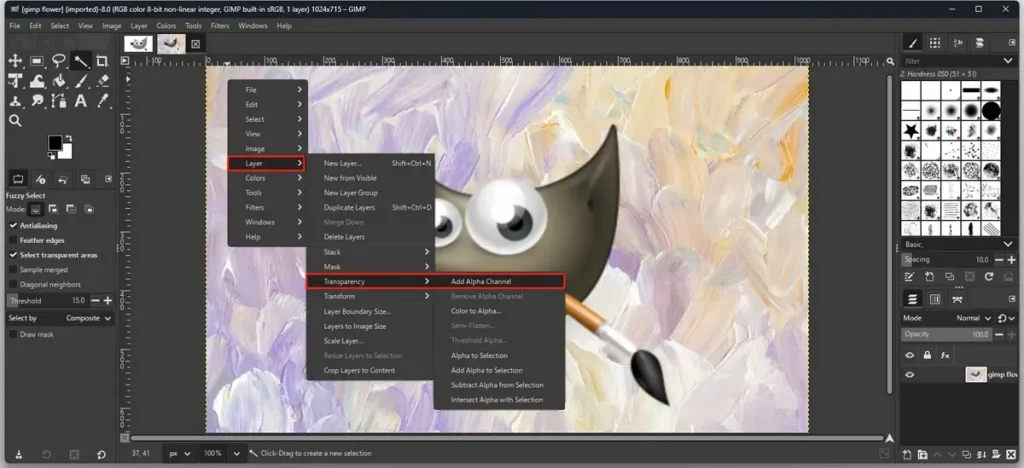
Step 1. Open GIMP and load the image you want to edit > Right-click the image layer, and select Layer > Transparency > Add Alpha Channel.
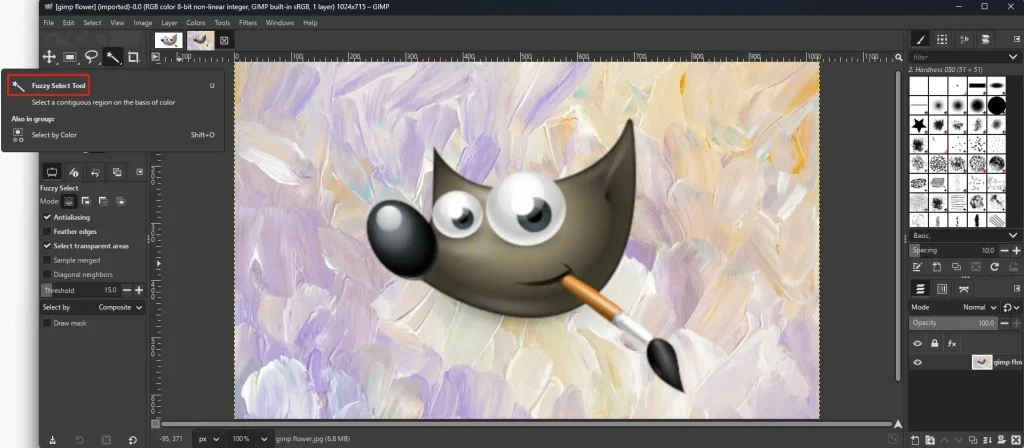
Step 2. From the Toolbox, choose the Fuzzy Select Tool > Click the background to create a selection based on similar colors.
Step 3. Press Delete to make transparent background in Gimp and display a transparent checkerboard pattern. Your image now has a transparent background and is ready to export.
Way 2. Use the Select by Color Tool for Solid Backgrounds
If your image has a plain and single-color background, the Select by Color Tool can simplify the process even more. This tool detects and selects all areas with the same color instantly, making background removal quick and precise. Here is how to make a background transparent in Gimp:
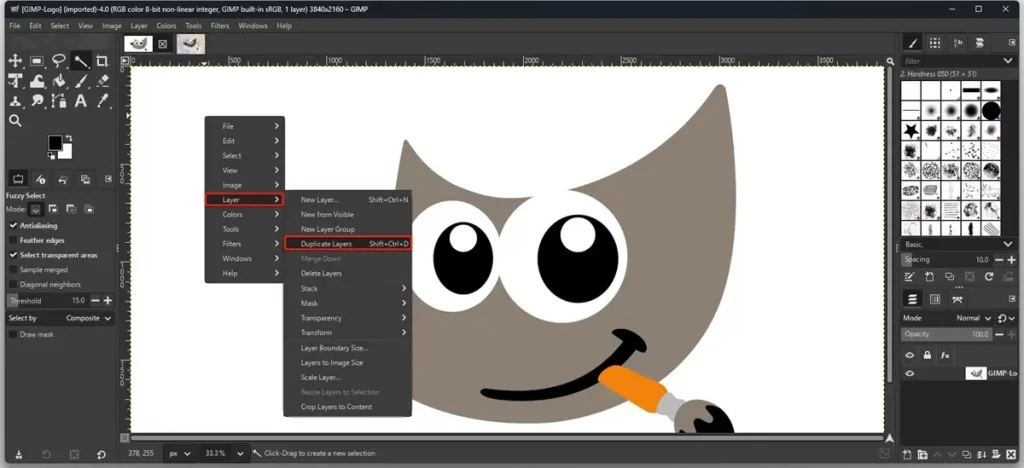
Step 1. Open your image in GIMP by going to File > Open. In the Layer panel, right-click the background layer and choose Duplicate Layer to create a backup.
Step 2. Select by Color Tool from the Toolbox > Click the solid background color to select all areas of that color.
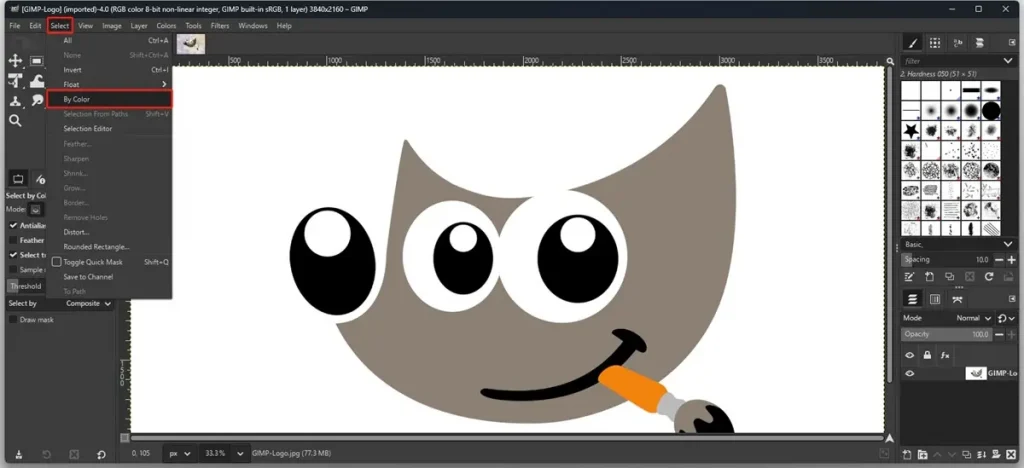
Step 3. Go to Layer > Transparency > Add Alpha Channel to enable transparency. Press Delete on your keyboard, and the selected color will now become transparent.
Alternative to Gimp to Make Background Transparent – AI Ease
While GIMP is undoubtedly powerful, its steep learning curve and lack of automation make it not ideal for removing backgrounds quickly and easily. Beginners often find its interface confusing, and achieving clean, professional-looking results can require multiple steps and a lot of manual work. For those who need a faster, more intuitive solution, AI tools offer a better alternative.
AI Ease’s free background remover is one such tool that simplifies the entire process with a single click. Whether you’re working with complex scenes or solid-colored backgrounds, AI Ease uses advanced AI algorithms to accurately detect and remove backgrounds in seconds without technical skills.

Highlights of AI Ease’s Background Remover
- Powerful AI Background Removal for Any Image
Whether your photo has a complex background or a solid color, AI Ease automatically detects the subject and easily delivers a smooth, precise cutout every time.
- One-Click Automatic Background Removal
With just a single click, you can easily remove any image background and make it transparent in seconds – no editing skills or manual effort required.
- User-Friendly and Free to Make Background Transparent
AI Ease offers a clean, intuitive interface, making it accessible to anyone who wants quick, professional results without a learning curve.
- Completely Web-Based – No Downloads Needed
There is no need to download software – just open AI Ease in your browser and start editing on any device, whenever you need.
- Abundant Editing Tools for Creative Customization
Once the background is removed, you can customize your image using preset designs, AI-generated scenes, or upload your own background for a personalized finish.
How to Remove Background from an Image Using AI Ease
Want to quickly and easily remove the background from an image? AI Ease’s online background remover only takes a few seconds. Follow the simple steps to get a clean and transparent background instantly.
Step 1: Upload Your Image
Drag and drop your photo or click to upload it directly into our background remover.
Step 2: Watch AI Work Instantly
In just seconds, our powerful AI tool will automatically remove the background from your photo.
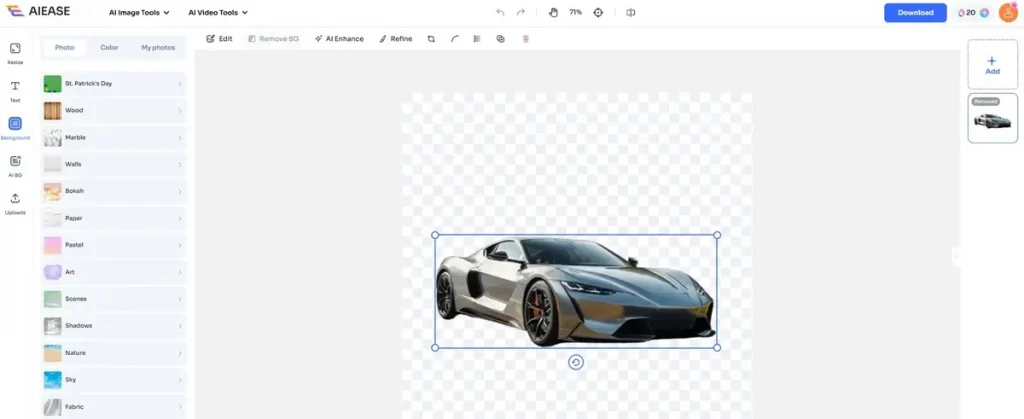
Step 3: Download or Keep Editing
Download your transparent image immediately, or continue editing the background using advanced tools in AI Ease.
Also Read: How to Edit Background of Photo on iPhone >>
The Bottom Line
That’s all about how to make background transparent in Gimp. While this tool helps you make background transparent, its steep learning curve and lack of automation can make it not ideal for removing backgrounds quickly and easily. If you want a faster, more user-friendly solution, consider using AI Ease to create transparent backgrounds effortlessly.