How to Overlay Photos on iPhone | Step-by-Step Guide
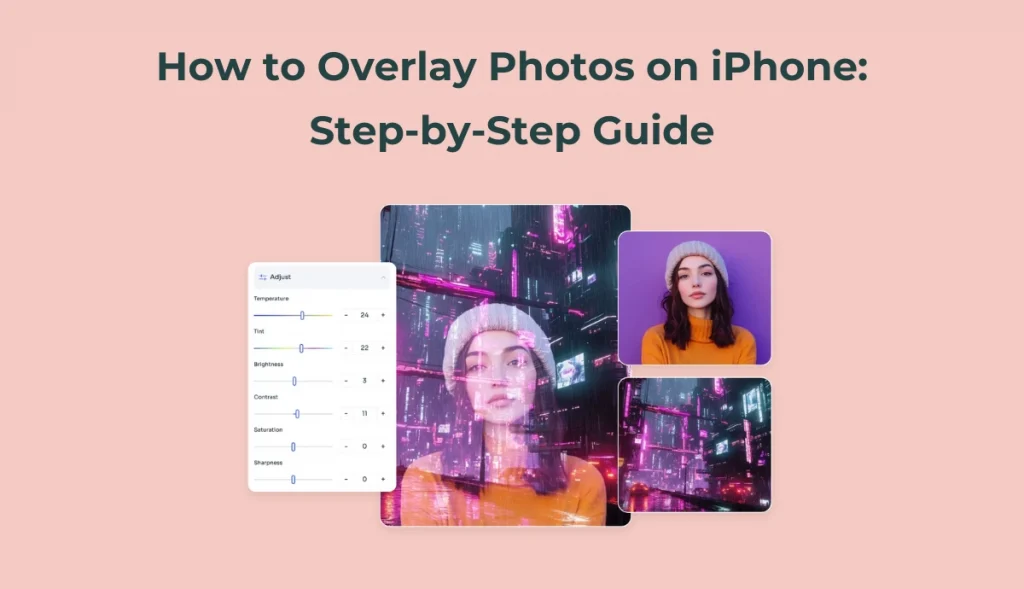
What is an overlay on an image? Photo overlays mean placing one picture on top of another. They’re a fun and straightforward way to get creative with your pictures, like combining two faces, adding a logo to your photo, or putting a picture on top of another picture.
In this guide, we’ll show you how to overlay photos on iPhone using different methods, from Apple’s built-in Shortcuts app to the more convenient AI Ease online solution. No editing experience is required; simply follow the steps and create amazing images!
How to Overlay Photos on iPhone with Shortcuts App
Apple’s Shortcuts app can help you perform many complex actions, including putting a picture on another picture on iPhone. With just a one-time setup, you can effortlessly layer two photos, even without third-party apps.
9 Steps to Overlay Photos on iPhone
With custom shortcuts, you can overlay multiple images on top of each other. Here’s how to overlay photos on an iPhone with the Shortcuts app. If you want to get the overlay image faster, you can go to the next section to learn how to use the AI overlay tool. You can overlay 2 images online in just 4 steps!
Step 1. Create a New Shortcut on Shortcuts App
This step initializes your photo overlay workflow. You’ll build a custom shortcut to layer images.
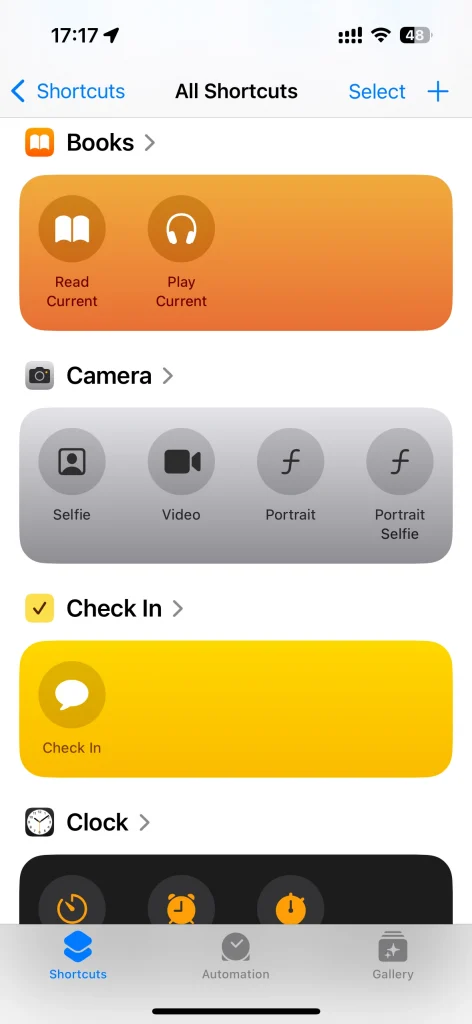
- Open the Shortcuts app on your iPhone.
- Tap the “+” icon at the top right to start a new shortcut.
- Then click “Add Action” to begin adding steps.
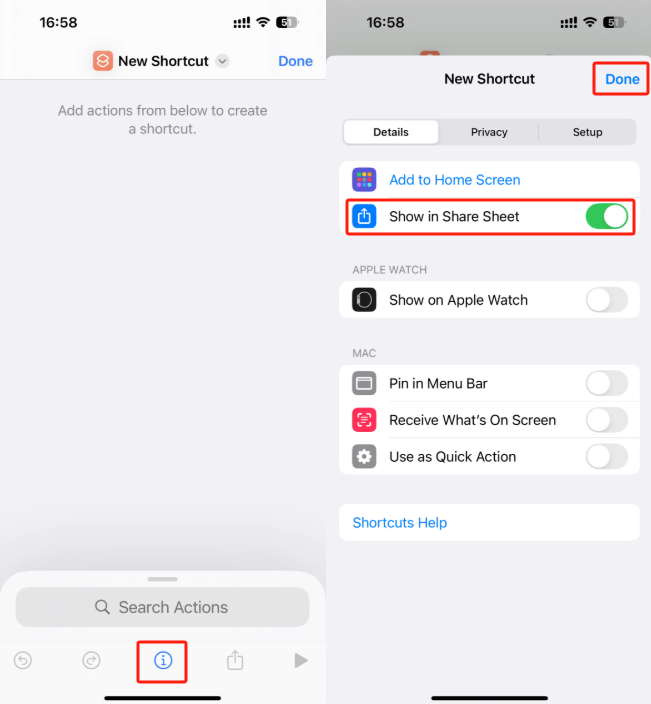
Step 2. Enable the “Show in Share Sheet” Option
This step tells your iPhone where to get the image and gives you quick access to the overlay tool.
- Tap the “i” icon next to your shortcut name (top bar).
- When you see a new page, turn on “Show in Share Sheet”.
- And tap Done to return.
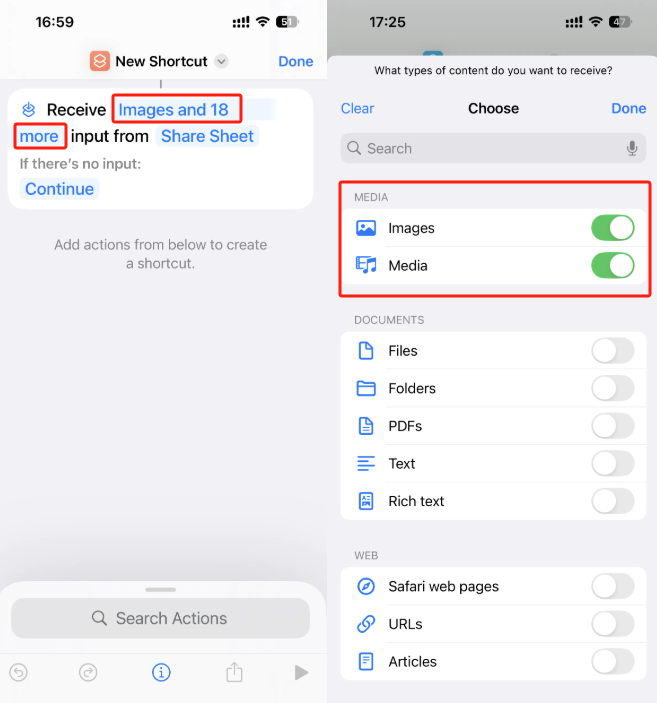
Step 3. Choose the Media File Formats
Back on the new shortcut page, and continue to follow the steps below to learn how to layer photos on iPhone.
- Tap where it says “Images and N more”’
- Close every media format except for Images and Media.
- Once selected, press Done.
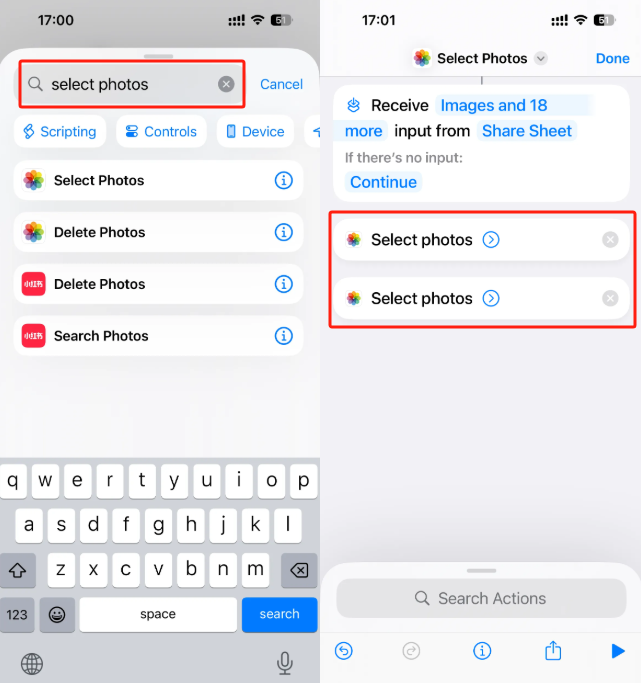
Step 4. Add the “Select Photos” Action (Twice)
To overlay two images, select one for the foreground and one for the background. Adding this action twice allows the shortcut to request two separate images.
- On the new shortcut page, select Add Action or click directly on the search bar at the bottom of the page.
- Type “Select Photos” and tap to add.
- Repeat to add a second “Select Photos” action.
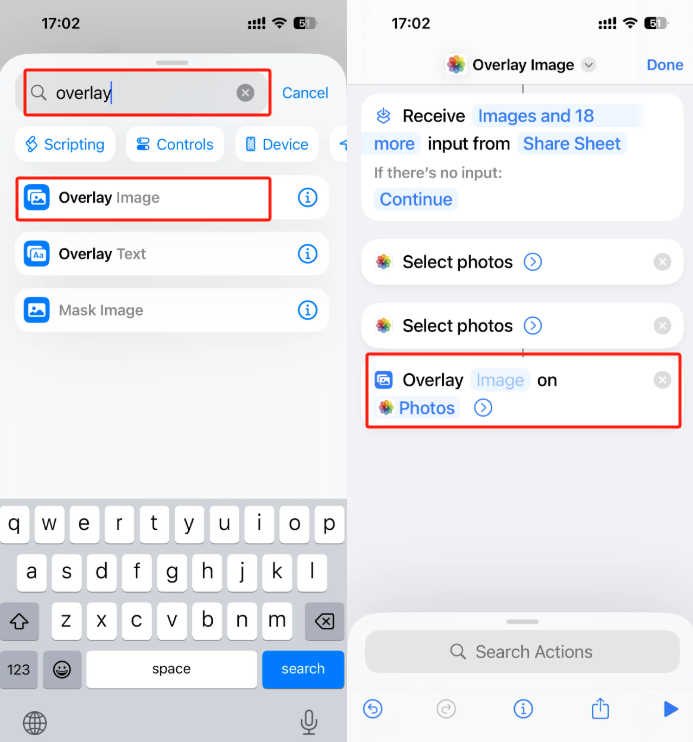
Step 5. Add the “Overlay Image” Action
This is the key action that blends your two selected photos together. It creates a new image with a photo on top of another photo.
- Add an action by typing “Overlay Image” into the search bar.
- Select the Overlay Image action to combine 2 photos iPhone.
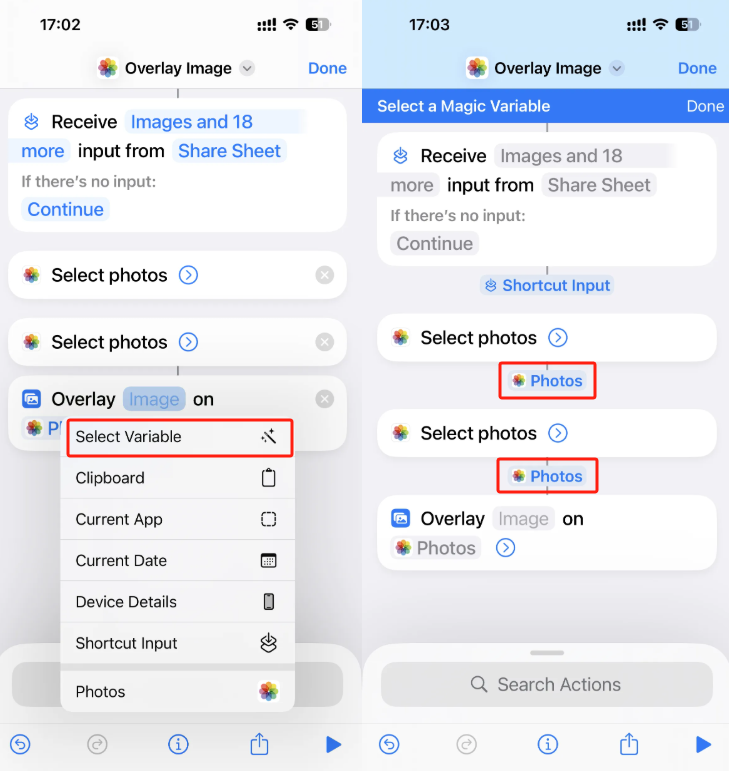
Step 6. Set Variable to Connect Image Content
By assigning Magic Variables, you’re telling the shortcut which selected photos go into which position in the overlay (top or bottom). So that you can learn how to paste a picture on another picture iPhone.
- Tap the first “Image” field in the Overlay Image action.
- Choose “Select Variable.”
- From the blue bar, tap the first “Photos” label (from your first Select Photos action).
- Repeat for the second “Image” field, linking the second “Photos” variable.
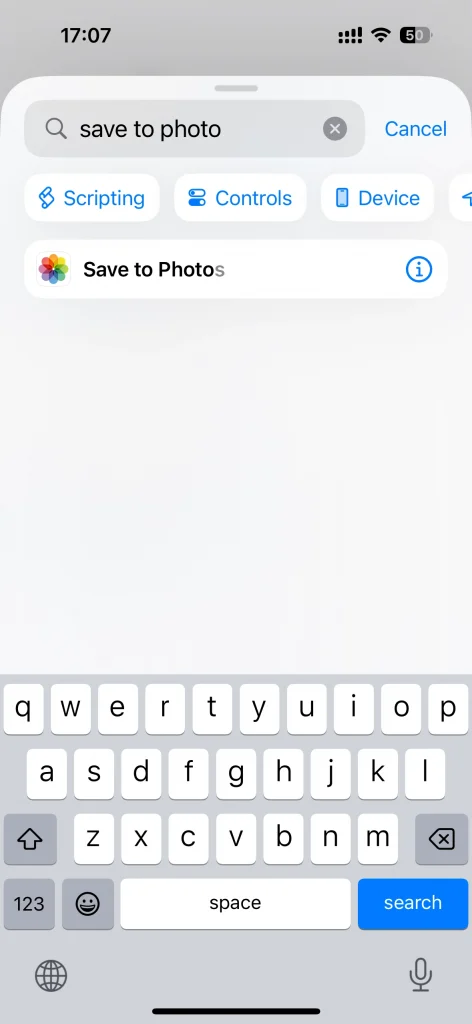
Step 7. Add “Save to Photos” Action
Once you superimposed pictures on iPhone, you can save the final overlaid image directly to your camera roll.
- Click into the search bar
- Search for “Save to Photo”
- Choose an album as the default album.
Step 8. Rename and Complete the Shortcut
After that, you can give your shortcut a clear name makes it easy to find when you use the Share Sheet.
- Tap the shortcut name at the top.
- Enter a new name like “Overlay” or any other name you prefer.
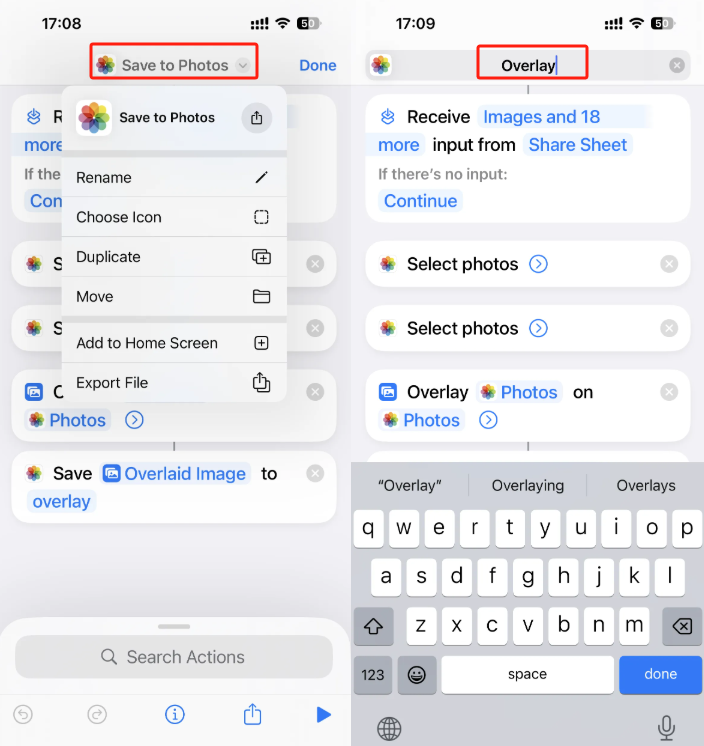
Step 9. Run the Overlay from the Photos App
Now that your shortcut is ready, it’s time to test it. You’ll run the overlay directly from the Photos app without opening Shortcuts again.
- Open the Photos app.
- Tap Select and choose two photos you want to add picture to picture. The first will be the overlay (top), the second the background.
- Tap the Share icon (box with upward arrow).
- Scroll down and choose your shortcut (e.g., “Overlay”).
- Wait a few seconds and your overlaid image will be saved automatically. You can adjust the opacity according to your needs.

The above are all the steps of how to overlay two photos on iPhone. Although the steps for using shortcuts are a little complicated, don’t worry; you can follow the detailed steps above. If you want to learn how to combine two photos on an iPhone without an app, the session below will give you the answer.
How to Put Two Pictures Together on iPhone Without an App
If you’re looking for a simpler and faster way to overlay images on your iPhone, AI Ease is a better option. AI Ease’s online background remover can intelligently remove the background, allowing you to easily add backgrounds and overlay images on your iPhone online for free.
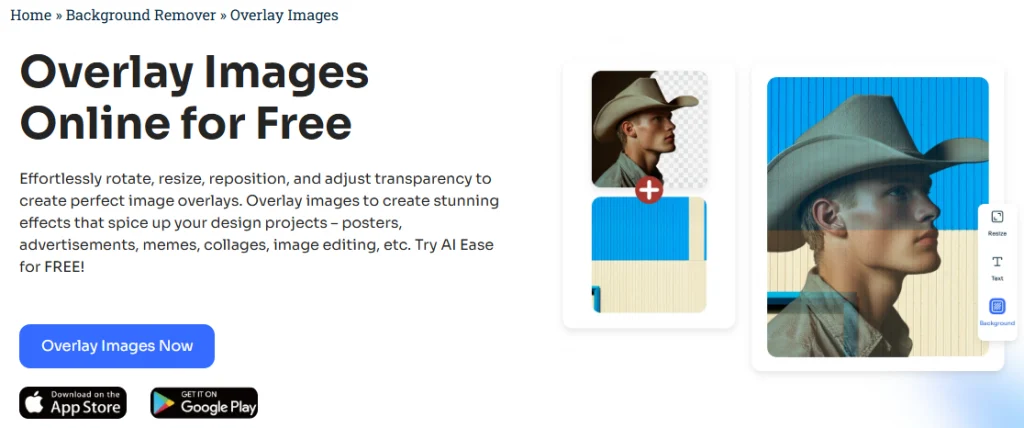
Why Choose AI Ease as an Online Overlay Tool?
AI Ease makes image overlay online effortless, even for non-tech-savvy users. Here’s why it stands out.
- Ease to Use: Just open Safari and get started instantly.
- AI-Powered Background Removal: Automatically removes the background from any image in seconds.
- Intuitive Drag-and-Drop Editor: Adjust size, opacity, and position with your fingers.
- Real-Time Preview: See the overlay results immediately, with no rendering delays.
- Direct Sharing: Download or share to Instagram, Facebook, or Messages in one tap.
4 Steps to Overlay Photos on iPhone with AI Ease
Now, you can visit the website of AI Ease’s background remover and learn how to overlay pictures on iPhone easily.
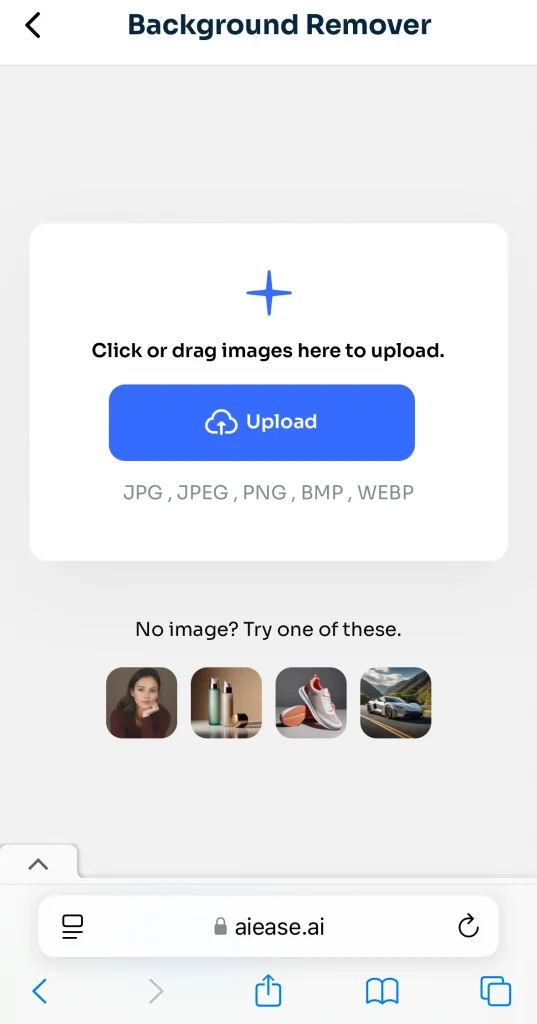
Step 1. Upload a photo to our AI background remover. It will automatically remove the image background in seconds.
Step 2. Tap Background, and select the “My photos” option from the top toolbar. Then choose an image from your “Photo Library” or “File” as the base image.
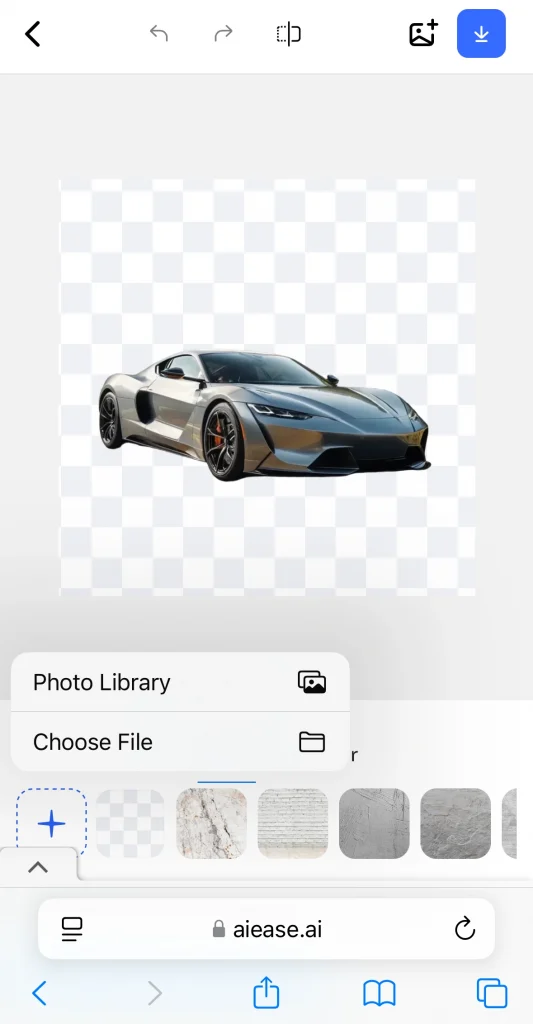
Step 3. Select the image with the background removed, then adjust its opacity, position, and orientation to add a picture to a picture on iPhone seamlessly.
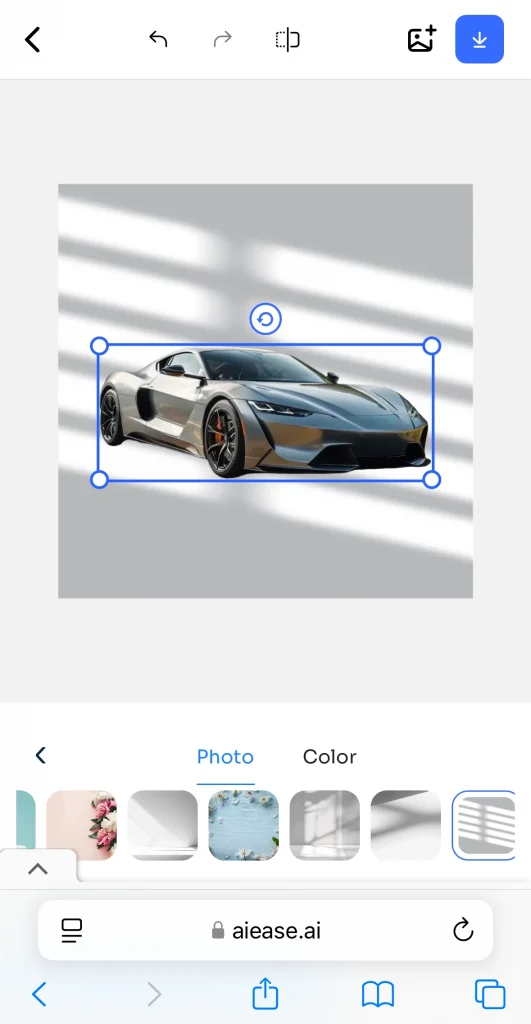
Step 4. When you’re finished, click “Download” to save the superimposed images to your device or share them directly on your favorite social platforms.
Conclusion
That’s all about how to overlay photos on iPhone. While Apple’s Shortcuts app gives you a native option, it requires multiple steps and setups. If you want a faster, more straightforward, and more visual approach, AI Ease is the perfect solution to combine two photos iPhone. Whether you’re a casual user creating memes or a content creator designing story visuals, use AI Ease to overlay pictures without an app, saving you time and clicks.