

Drag or drop your image here to upload
How to Recover Files Deleted by OpenClaw: 5 Effective Methods
OpenClaw is an AI agent designed to perform real tasks on a computer instead of only answering questions. It can help manage files, automate workflows, and handle routine actions across different apps and services. That is exactly why it is useful — and why mistakes can be serious. If OpenClaw is given broad file access, a wrong instruction or a bad judgment can lead to accidental deletion of documents, folders, images, attachments, or other important data.
A deep, resonant power hum emerges from the mech. A single, bright red light flickers on within its dark optical sensor, then stabilizes into a piercing glow. The giant machine begins to move, shaking off tons of debris and dirt as it slowly, powerfully, rises from its grave, servos whirring and hydraulics hissing.
HistorySee All
A deep, resonant power hum emerges from the mech. A single, bright red light flickers on within its dark optical sensor, then stabilizes into a piercing glow. The giant machine begins to move, shaking off tons of debris and dirt as it slowly, powerfully, rises from its grave, servos whirring and hydraulics hissing.
Your videos generation history will appear here.
Inspirations
See AllMethod 1: Check the Recycle Bin
This is the fastest and easiest option. If the files were deleted normally, they may still be there.
- 1
Open
Open the Recycle Bin on your Windows computer and check whether the deleted files are still there.
- 2
Sort
Sort the files by deletion date, or search by filename if you remember the file name.
- 3
Restore
Right-click the target file and choose Restore to return it to its original location.
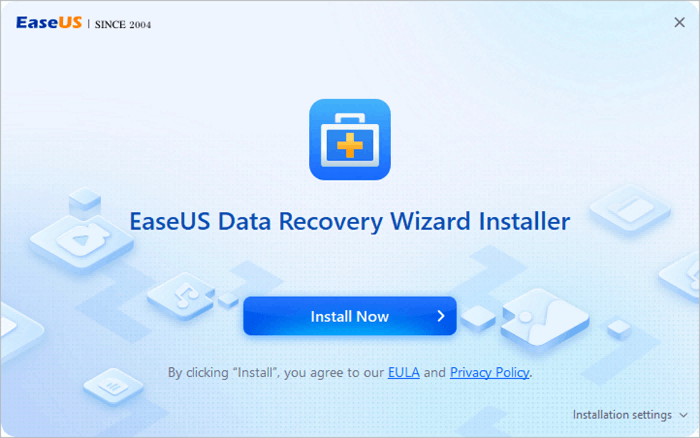
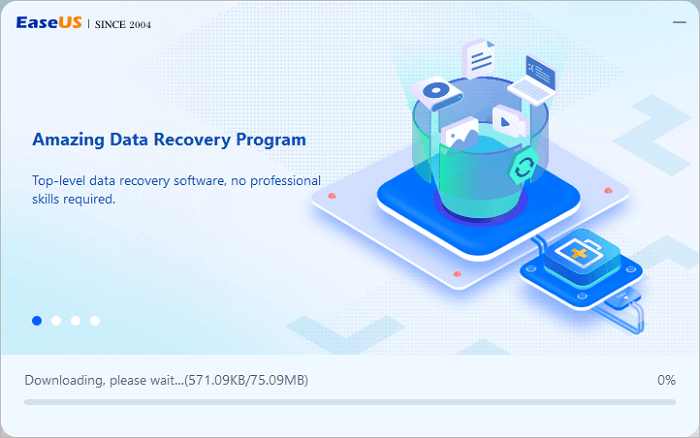
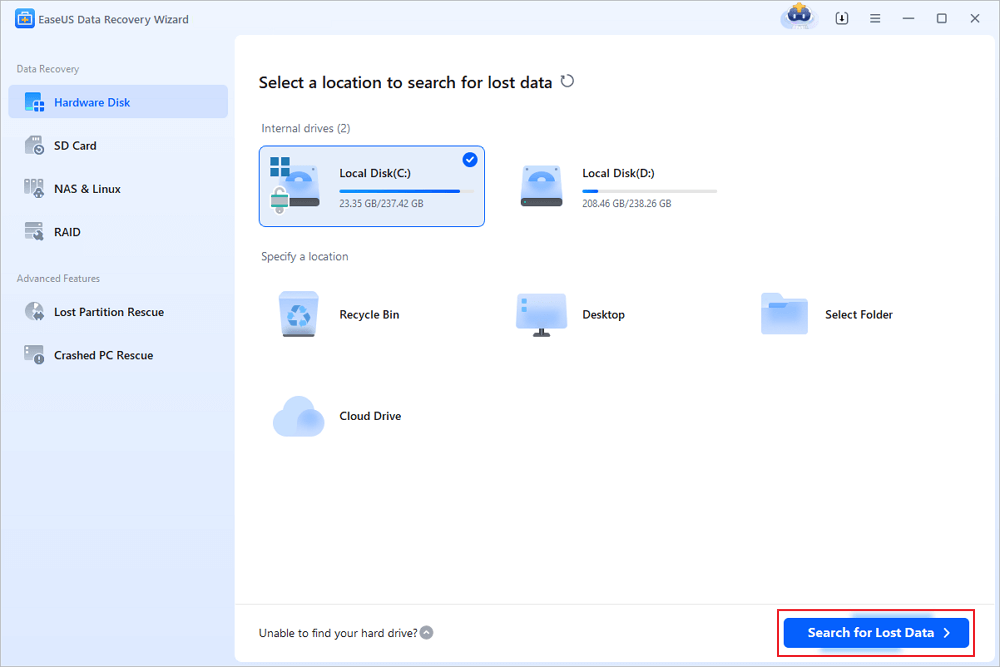
Method 2: Use EaseUS Data Recovery Wizard
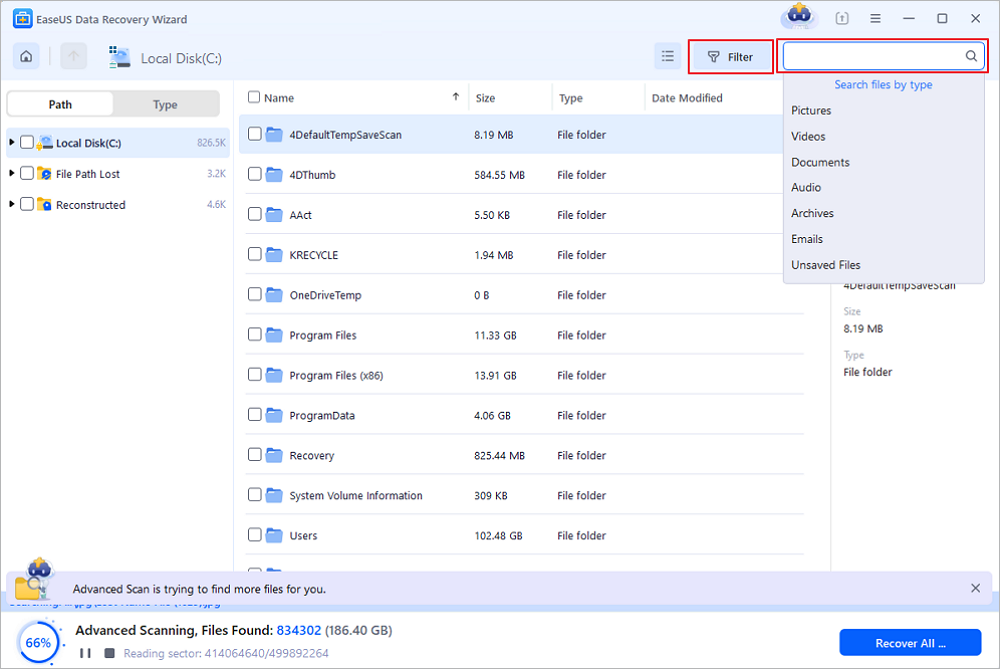
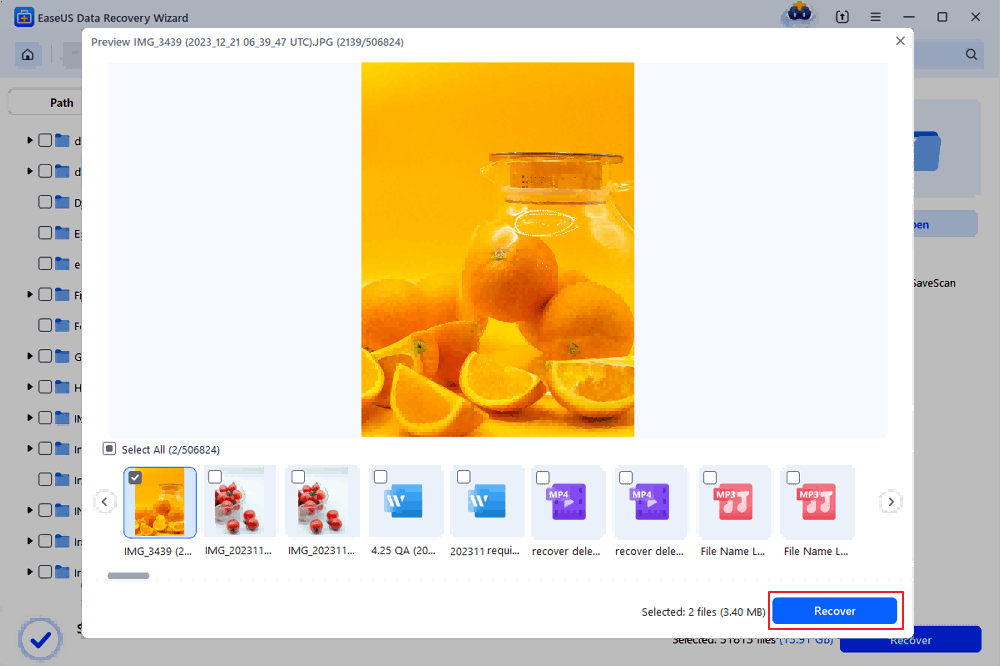
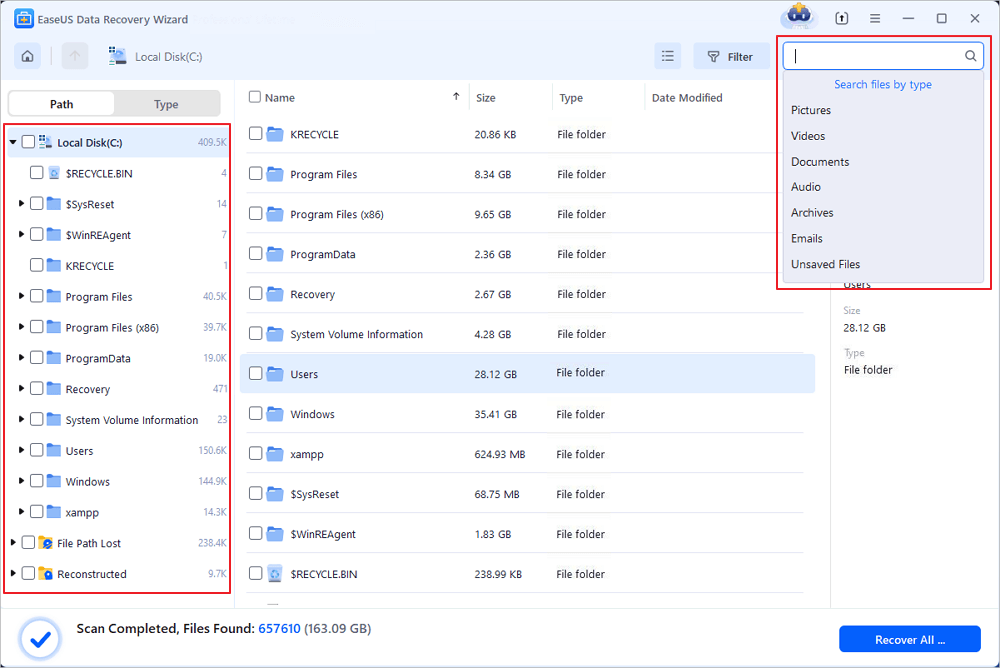
If the deleted files are no longer in the Recycle Bin, a visual recovery tool is often the most practical choice. This is especially useful when OpenClaw removed multiple documents, attachments, images, or an entire folder.
Method 3: Restore from File History or System Backup
If backup features were enabled before the deletion happened, you may be able to restore an earlier version of the file.
- 1
Open
Open Control Panel and go to System and Security.
- 2
Enter
Click File History to access backup records.
- 3
Browse
Select Restore personal files and browse through available versions.
- 4
Recover
Choose the file you want and restore it to the original or a safe location.
Method 4: Use Windows Previous Versions
Windows may keep folder snapshots through System Protection. If that feature was enabled, you may be able to recover the deleted file from an older version of the folder.
- 1
Locate
Locate the folder where the deleted file was originally stored.
- 2
Properties
Right-click the folder and select Properties.
- 3
Versions
Open the Previous Versions tab.
- 4
Restore
Choose an earlier version and open or restore it.
Method 5: Try Windows File Recovery
If you prefer an official Microsoft tool, Windows File Recovery is another option. It is command-line based, so it is better suited to users who are comfortable with manual commands.
- 1
Install
Install Windows File Recovery from Microsoft Store.
- 2
Launch
Open Command Prompt as administrator.
- 3
Command
Run a command using the correct source drive, destination drive, and recovery mode.
- 4
Save
Save recovered files to a different drive.
Frequently Asked Questions
Have more questions? You can email service@aiease.ai, and we'll be happy to help you.
Can files deleted by OpenClaw still be recovered if they are not in the Recycle Bin?
Yes. If the deleted data has not been overwritten, recovery is still possible in many cases.
Can files deleted by OpenClaw still be recovered?
Yes, in many cases they can. If the deleted files have not been overwritten by new data, there is still a good chance of recovery. That is why it is important to stop using the affected drive as soon as you notice the deletion.
Why does OpenClaw delete important files by mistake?
This usually happens because the AI agent has broad file access, the instruction is too vague, or the deletion task runs automatically without enough confirmation. In those cases, OpenClaw may treat useful documents, folders, or attachments as files that can be removed.
What should I do first after OpenClaw deletes my files?
The first step is to stop writing new data to the same drive. Then check the Recycle Bin, look for available backups, and move on to file recovery methods as quickly as possible. The sooner you act, the better your recovery chances usually are.
What is the easiest way to recover documents deleted by OpenClaw on Windows?
For most users, the easiest option is to start with the Recycle Bin and then use a graphical recovery tool if the files are no longer there. This is usually more practical than command-line recovery, especially when multiple documents, folders, or email attachments were deleted at once.
Can OpenClaw-deleted emails and attachments be recovered too?
Yes, they often can. If local email data or attachment files have not been overwritten, recovery is still possible. To improve the odds, avoid syncing, downloading, or generating new mail data before starting recovery.