How to Change Color in Photoshop: The Complete Guide
Summary: Want to learn how to change color in Photoshop easily? It’s an essential skill when you’re adjusting a background or simply exploring your creativity. In this step-by-step guide, we’ll walk you through several beginner-friendly methods – from using the Hue/Saturation adjustment to mastering the Color Replacement Tool. No matter your experience level, you’ll be able to change object or background colors in just a few clicks. Let’s dive in!
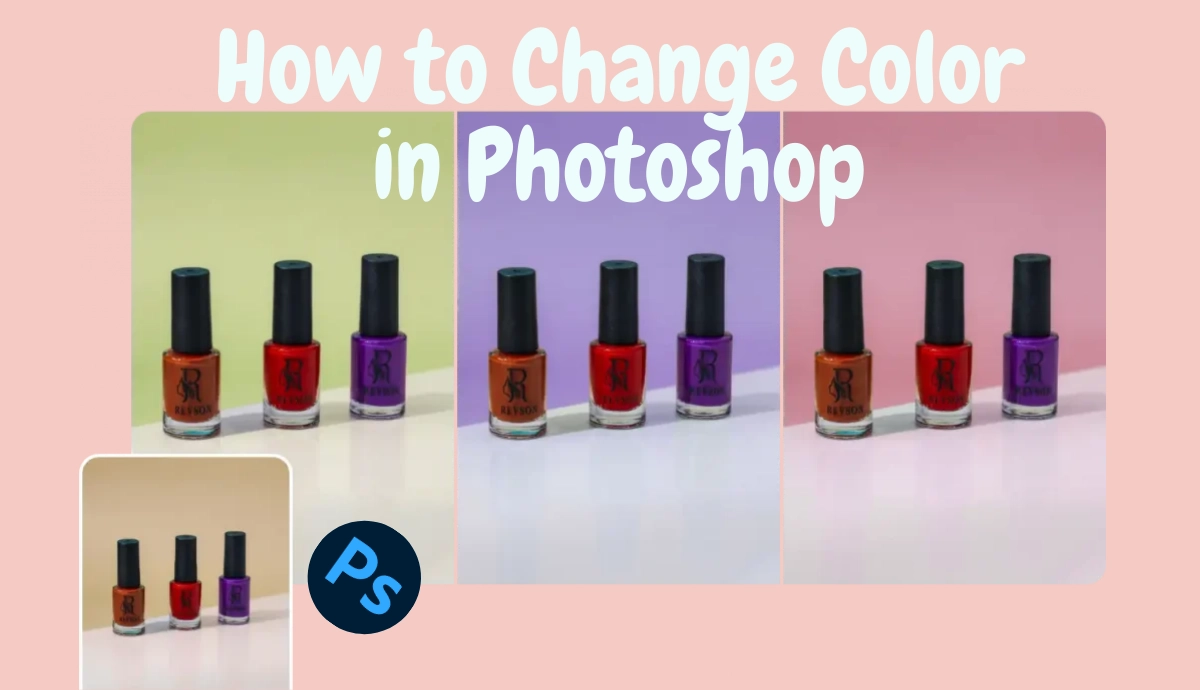
Why You Need to Change Color in Photoshop?
Photoshop is a professional graphic editing software designed for photographers, designers, marketers, and e-commerce sellers alike. As an editing software, Photoshop offers more flexibility to color designers. Here are the possible situations that the Photoshop image color changer can handle well:
- Experiment with different color schemes.
- Correct colors for a more natural, balanced look.
- Change the background color.
- Test different fabric colors digitally when it comes to clothing or textile mockups.
- Use color variants for A/B testing in ads or landing pages.
How to Change Color in Photoshop?
Want to replace color in image? Luckily, there are four major methods for how to change color in photoshop. Now, let’s check how they work. Note that the specific steps will vary with the different version of Photoshop.
Method 1: Use the Hue/Saturation Adjustment
Hue/Saturation Adjustment Layer is one of the easiest and most flexible ways to change color in Photoshop. With this method, you can target specific colors and replace them without permanently altering the original image.
Pros of Using the Hue/Saturation Adjustment:
- Non-destructive editing
- Precise color targeting
- Real-time preview
- Works well for solid colors
How to Change Color in Photoshop – Step-by-Step Guide:
First of all, you need to launch Photoshop and open the image you want to edit. If you don’t want to change all the image color, you can create a selection part and apply a layer mask to do the non-destructive editing. Here, we recommend the Quick Selection tool as a solid choice.
Use a selection tool such as:
- Quick selection tool
- Object selection tool
- Pen tool for more complex shapes
When you have selected the object for a specific color replacement, there will be an automatic mask for the adjustment layer. Then create a Hue/Saturation Adjustment layer for the selected areas and use the Hue slider to choose your desired color. Photoshop also allows you to fine-tune the image by tweaking the saturation and lightness settings.
Method 2: Use the Color Replacement Tool
If you’re looking for a more hands-on and intuitive way to change colors in Photoshop, the Color Replacement Tool is a great option. It allows you to paint over a specific color while preserving the texture, shadows, and highlights of the original object.
Pros of Using the Color Replacement Tool:
- Quick and intuitive
- Ideal for freehand editing
- Maintains lighting and surface details
Things to Watch Out For:
The method is not as precise as adjustment layers, and it is more recommended to be used for simple, high-contrast areas. Besides, it may ruin the original image layer, so you can prepare a duplicate background layer by pressing Cmd/Ctrl + J.
How to Change Color in Photoshop – Step-by-Step Guide:
Click and hold the Brush Tool icon from the left column and choose the Color Replacement tool from the drop-down menu. Here, you can adjust various tool options to customize your brush size, color mode, sampling, limits, and tolerance.
Remember to choose the color you want to apply in the foreground color box and click and drag the brush over the area you want to recolor. This tool works great for recoloring hair, fabrics, eyes, or painted surfaces like walls or cars.
Method 3: Add a Solid Color Fill Layer with Mask
For a highly precise and non-destructive way to change color in Photoshop, using a Solid Color Fill Layer combined with a Layer Mask is ideal. This technique gives you full control and flexibility without affecting your original image.
Pros of Adding a Solid Color Fill Layer with Mask:
- Non-destructive
- Easily editable
- Works on complex subjects
How to Change Color in Photoshop – Step-by-Step Guide:
Just as in the steps in Method 1, you can select the area you want to recolor by using the selection tool and make sure to accurately outline the object. Once your selection is active, apply a new fill layer and set the color of the layer to your target color.
Note that you should make sure the fill layer is set on the top layer. Then, change the blend mode to color and refine the mask by using the brush on the mask and painting it in the new color.
Method 4: Use the Replace Color Dialog
Replacing color dialog is another effective method to replace color in image with Photoshop. It is, similar to the color replacement tool, usually used to change color of object in Photoshop. Now, follow the next steps to change color of image.
How to Change Color in Photoshop – Step-by-Step Guide:
From the top Photoshop menu, go to Image > Adjustment > Replace Color and choose the eyedropper tool to select the color sample you want to replace. Here, you can also move the slider for Hue, Saturation, and Lightness adjustment in the bottom part of the Replace Color menu screen to change color, and this color changer will replace the color.
For more information related to Photoshop skills, read these blogs:
- How to Change Hair Color in Photoshop: A Step-by-Step Guide
- How to Retouch a Photo in Photoshop: A Beginner’s Guide
How to Change Background Color with AI Ease?
While Photoshop color replacement tool offers powerful and flexible features for manual color editing, sometimes you just need a faster and more effortless solution – especially if you’re working with multiple images or lack advanced editing skills. That’s where AI Ease – color changer – comes in.
AI Ease is an advanced AI-powered image editing tool that allows you to automatically change background colors with just a few clicks – no masking, layers, or brush tools needed. Whether you’re editing product images for your online store or testing color variations for a campaign, AI Ease provides a lightning-fast alternative to Photoshop’s manual methods.
- Instant AI color replacement
- Auto object detection
- No Photoshop skills required
- Ideal for e-commerce, marketing, and social media design
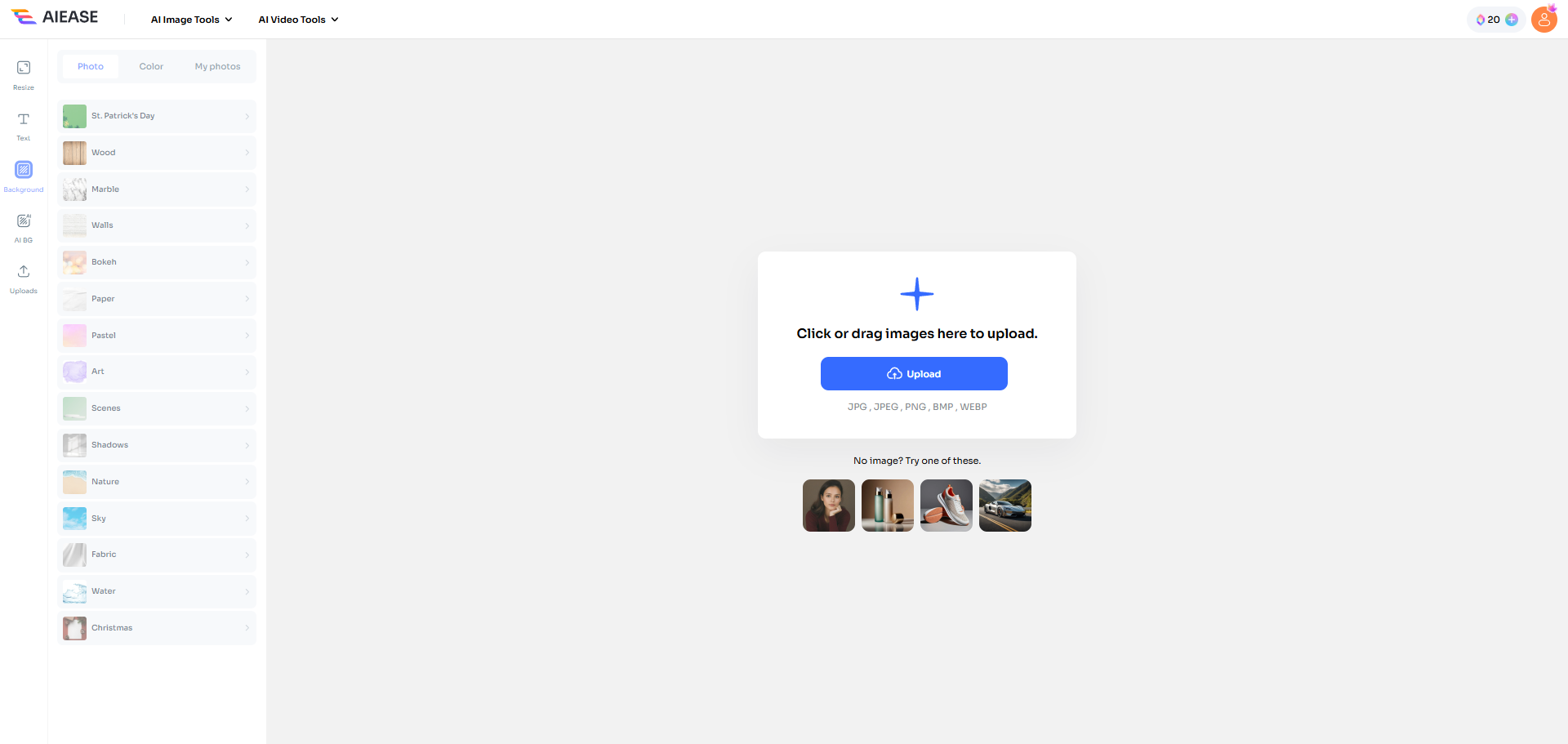
Step 1: Click the button to enter the AI Ease interface and click Upload to upload your image.
Step 2: Then AI will automatically detect and remove the background and you can choose the wanted color from the left panel to replace color in image.
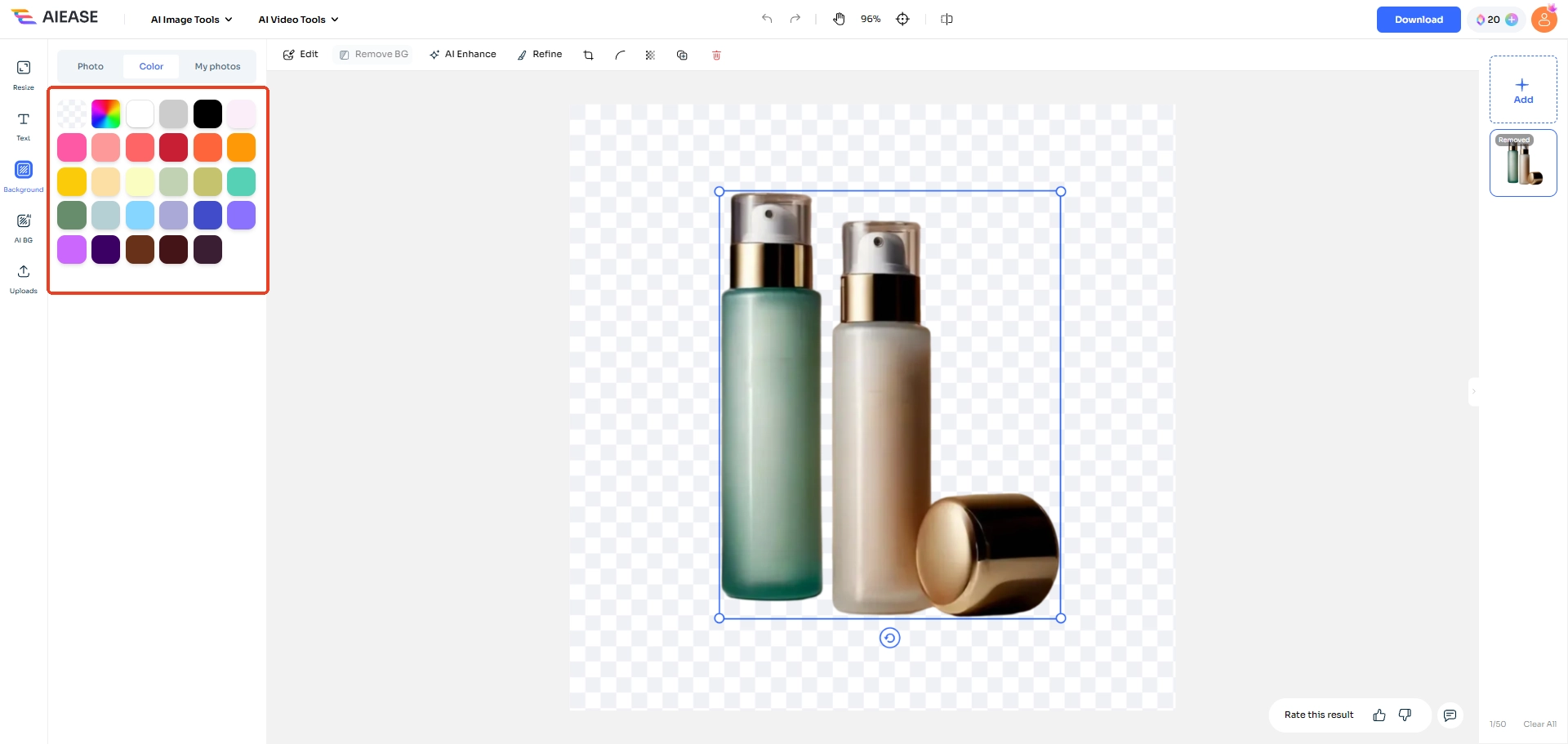
Step 3: When you finish that, click Download to save the image. Or you can choose to edit the image for more details. AI Ease also allows users to design personalized background by text to image.
Conclusion
Changing colors in Photoshop doesn’t have to be complicated. To satisfy all your needs, Photoshop offers powerful tools like Hue/Saturation adjustments, the Color Replacement Tool, and layer masking to help you achieve professional results. By practicing the methods outlined in this guide on how to change color in Photoshop, you’ll not only improve your editing workflow but also gain more creative control over your visuals.
Ready to take your Photoshop skills to the next level? AI Ease is another choice to automatically change color of image. And if this guide helped you, don’t forget to share it with fellow creatives.